

MT4 setup has two separate checks: can the terminal connect to your account, and is the order you are preparing appropriate for that account? A moving chart answers neither question by itself. The wrong server, a read-only password or an incompatible account can leave prices visible while trading fails.
Get the correct MT4 version
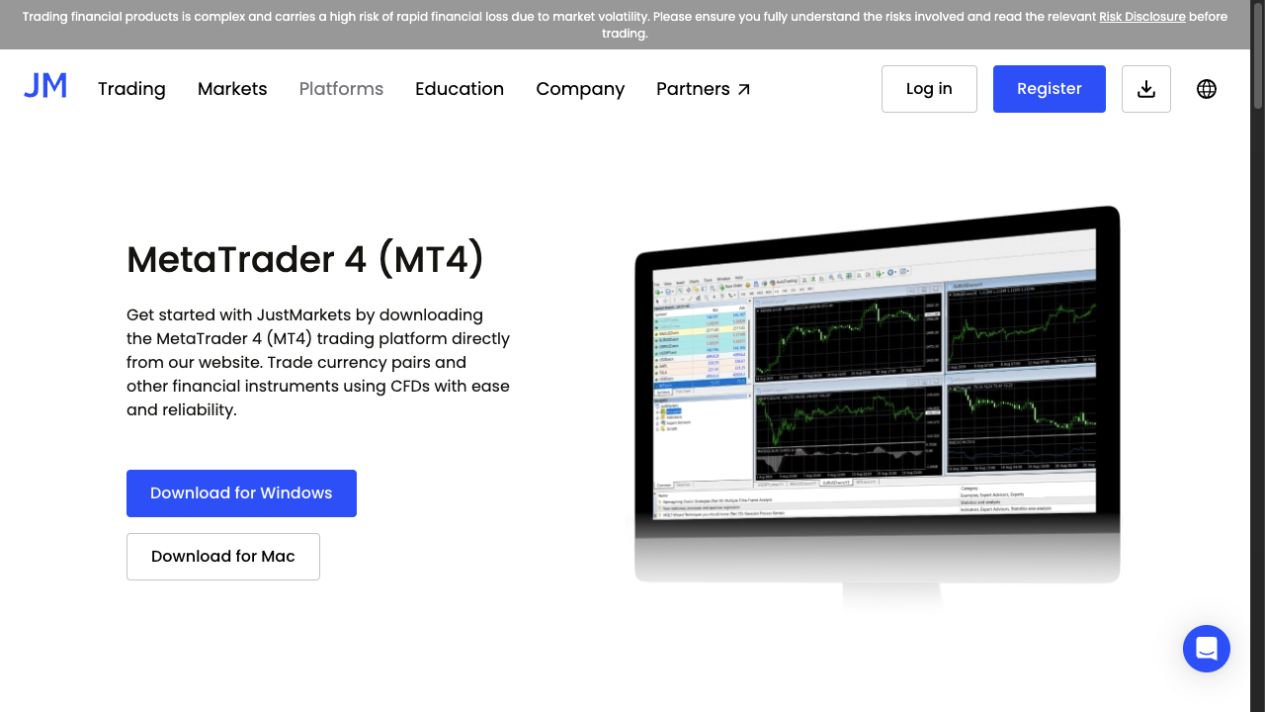
For a Global account, open the official Global MT4 desktop download page. For another device or a different contracting company, use that company’s applicable platform route. Follow the linked installer or official app-store listing rather than a repackaged installer in a message. The JustMarkets MT4 instructions cover desktop and mobile versions, whose menus differ.
Check that the account is actually MT4. An MT5 account number will not become compatible simply because both platforms carry the MetaTrader name. If you intended to use MT5, follow the separate MT5 setup guide. The current account comparison is also worth reading before you open another account.
Connect the account and confirm its identity
- Locate the trading account’s platform, number and server in Personal Area.
- On desktop MT4, open File → Login to Trade Account.
- Enter that account’s number and trading password, then select its exact server.
- After connection, confirm the account number and whether it is demo or real before opening an order window.
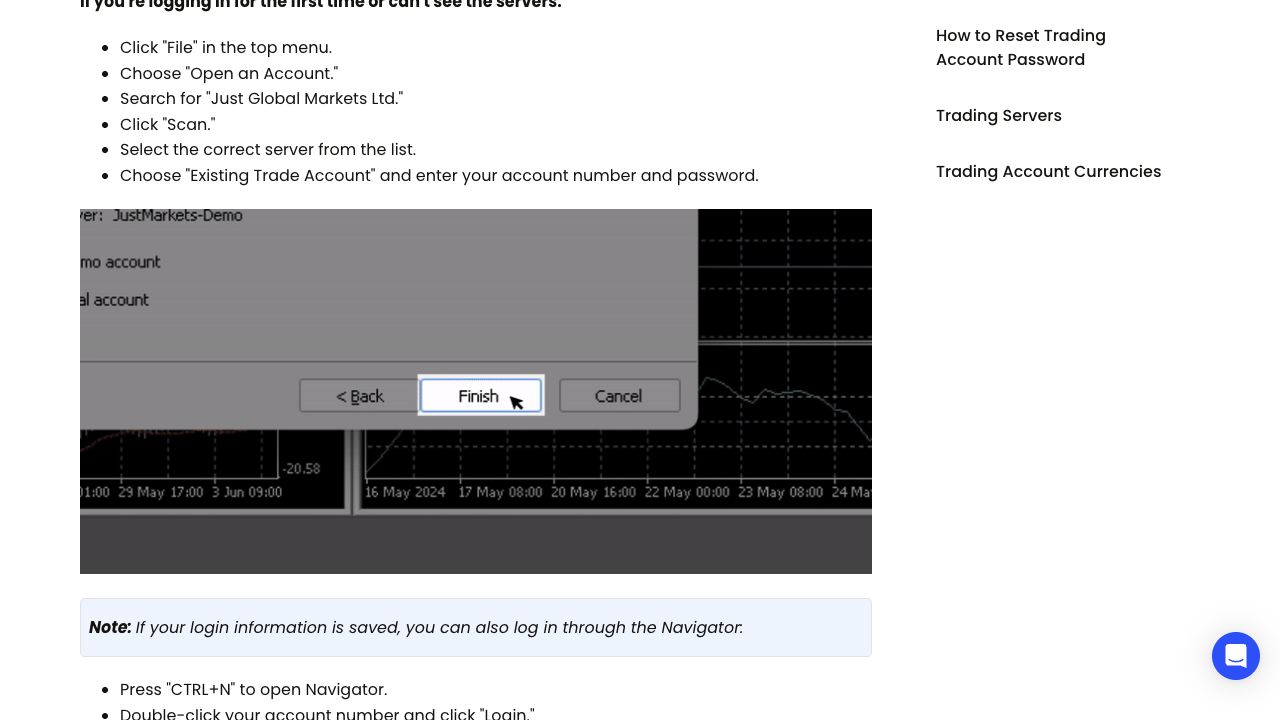
If the server is missing, the broker’s connection guide documents searching for Just Global Markets Ltd through Open an Account. Use the server assigned to your own account, not a server name copied from an unrelated screenshot. For email login and password recovery, use the Personal Area and platform login guide.
Keep saved credentials off a shared computer. When switching accounts, check the number again; a familiar chart template can look identical on two accounts with very different balances.
Inspect the symbol before placing an order
Use Market Watch to locate the instrument available for your account. Symbol suffixes can matter. A chart for a similarly named instrument is not proof that you selected the tradeable contract for your account type.
Review the contract size, smallest volume, volume step, trading session, swap and any commission. Plan the cash risk using those units, then enter the order volume. The lot field is position size; the stop-loss field is a price level. Confusing them is a more serious mistake than choosing an inconvenient chart colour.
For a first rehearsal, use the demo-account practice plan. Identify the symbol, volume, direction, order type and stop before pressing a submission button. Then practise modifying and closing the position and finding the result in history. This guide does not report a live fill or a tested spread.
Connection and trading errors need different fixes
| Symptom | First check |
|---|---|
| Invalid account | MT4 versus MT5, account number, password and exact server |
| Connected but cannot trade | Read-only password, account verification, instrument suffix and trade permissions |
| Missing symbol | Market Watch symbol list and the account’s available instruments |
| Order rejected | Exact Journal message, volume step, margin and market session |
The broker’s trade-disabled help also lists unmet initial funding requirements and close-only instruments. Do not assume every error requires more money. Establish the specific cause first, particularly if the account is already funded.
Keep the time, symbol, order settings and redacted Journal message when asking support. Do not send the trading password. If you are using a separate automated or copy-trading service, check its own account and operating requirements; installing MT4 alone does not activate those services.
Frequently asked questions
Can I use an MT5 account in MT4?
No. The platforms use separate trading accounts. Use the terminal matching the account or create an eligible separate account in Personal Area.
Where do I find the MT4 server?
Use the server shown for the specific trading account in Personal Area. Do not guess from a generic broker name or another account’s screenshot.
Why can I see prices but not trade?
Check whether you used a read-only password, chose the correct symbol and met the account’s requirements. The exact Journal or trade-disabled message helps distinguish the cause.
Should I practise on demo first?
Demo is useful for learning login, symbol selection, order changes and exits without risking deposited money. It does not prove live execution quality or future trading results.
Sources and scope
Official public documentation checked on 14 September 2026. Account-specific screens and the agreement with your assigned company govern. This guide does not claim a funded-account or execution test.