

For the provider, account and withdrawal checks behind this setup, start with our XM broker review. Use the XM country guides for residence-specific questions before following these shared MT4 steps.
Installing MetaTrader 4 is only the first part of XM MT4 setup. The account, server and client must match before a chart becomes useful. If those details are wrong, another installation rarely explains the problem.
This guide follows the desktop MT4 workflow from an official download to a complete demo exercise. The aim is straightforward: know which account is connected, understand the symbol you selected and check what happened after an order request. We checked MetaQuotes documentation on 6 September 2026 and rechecked XM’s platform entry on 7 September; we did not install a client, access an XM account or place trades for this article.
What you need before starting
Prepare an XM demo account designated for MT4, its trading account number, exact server and trading password. Keep the account confirmation accessible privately. You also need a supported device, a working connection and permission to install software on that device.
Use a demo throughout these steps. Before any order action, compare the active account number with your demo record. A familiar chart or an XM logo does not establish which account is active. If your details say MT5, use the XM MT5 setup guide instead.
1. Get and install the official MT4 client
Start at the XM MT4 product page and choose the client for your device. Its public route was rechecked on 12 September 2026. Follow the version offered for your account rather than searching for an installer named after a server. The server is an account-connection detail used after the program opens.
Expected result: the correct MT4 application opens on your chosen device. Account connection comes afterwards.
- Start at XM’s official MT4 platform page. Follow the device route actually offered there. If your regional page does not expose the desktop download you need, request the current official route from XM support. Do not replace it with an installer attached to a forum post or an advertising result.
- Check the destination and software identity. Before installing, make sure the official route has led to the intended MetaTrader 4 package or official app-store listing. Read the displayed publisher and application name. Cancel if the destination or software is unexpected, and confirm it through XM’s official support.
- Install the desktop package using its wizard. On Windows, choose the intended installation directory and follow the installer’s prompts. MetaQuotes describes this sequence in its MT4 installation help. Preserve any existing terminal and its data if you already use it; do not uninstall a working setup to practise on a demo.
- Open the installed application and identify it. Check that its name is MetaTrader 4 and note the version/build information available in its About dialog. Keep that information for troubleshooting. Launching successfully confirms that the program opens, not that an XM account is connected.
On a Mac, use the current official Mac route and our MT4 installation guide for Mac. Installation paths and compatibility can differ from Windows, so do not copy a Windows filesystem path into a Mac setup.
Mobile and web clients have their own layouts. The desktop custom-indicator file procedure below is not a mobile or browser installation method. If your goal is a downloaded MT4 indicator, establish the supported desktop setup first.

2. Connect the exact XM MT4 demo account
Expected result: the account number matches your demo, the client is connected to its assigned server and the relevant symbol can receive quotes during its session.
- Read the demo details from XM. Confirm the MT4 designation and copy the complete server name exactly. Keep any suffix or number. Do not choose a similarly named server because it appears first.
- Open the trading-account login in MT4. Use the File menu’s login command, or right-click the account in Navigator and choose Login to Trade Account. Enter the trading account number, its trading password and the assigned server, then connect. These are the fields documented in MetaQuotes’ authorization guide.
- Verify the connected account. Compare its number with the official demo confirmation and check the demo account information. Confirm the connection indicator, then inspect a symbol’s quotes during its trading session. Stop before ordering if the number, account type or server is uncertain.
- Resolve a failed connection in a fixed order. Recheck MT4 compatibility, exact server, account number and trading password. If the required server is absent, obtain the current connection instructions from XM. For a persistent failure, retain the exact error and time rather than cycling through unrelated servers.
An XM profile login is for the website or app’s customer area; the MetaTrader field expects the trading account number. Investor authorization can display account information while preventing trading. A connection that works in investor mode does not prove that the trading password is wrong.
Use XM’s official recovery route for the selected trading account. A support record should include the error, platform version and server, not a password or security code.
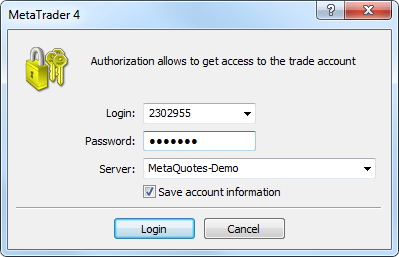
- Login is the trading account identifier. Use the credentials assigned to your own account.
- Choose your exact XM server. MetaQuotes-Demo in this documentation example is not an XM server.
3. Open the right symbol and attach an indicator
Expected result: a chart for the intended account-specific symbol, with known contract settings and an indicator you can identify.
- Show the available symbols. Open View > Market Watch. If the required instrument is missing, use the Market Watch context menu’s Symbols or Show All command. Read the complete symbol name, including any suffix, before selecting it.
- Inspect the contract. Right-click the chosen symbol and open Specification. Check contract size, price digits, permitted volume and volume step, stops level and trading sessions. These are broker-defined symbol conditions in MT4’s Market Watch documentation. Do not borrow a minimum lot or stop distance from a different instrument.
- Open its chart. Use Chart Window from that symbol’s context menu. Choose a timeframe deliberately and compare the chart name with Market Watch. If it is blank, check the selected symbol, connection and session before diagnosing an indicator failure.
- Try a built-in indicator first. Open View > Navigator, expand Indicators and attach a familiar built-in tool to the chart. Inspect its settings before accepting them, then confirm that its line or subwindow appears where expected.
- Add a custom MT4 indicator only when needed. Obtain it from a source you trust. In this terminal, use File > Open Data Folder, then open MQL4/Indicators and place the supplied MT4 indicator files there. Use the running terminal’s data folder, not a similarly named directory from an older installation. MetaQuotes explains the terminal data structure.
- Reload and inspect the custom indicator. Refresh the Navigator’s indicator list, then attach the compiled indicator and inspect its inputs and plot. Navigator displays executable EX4 indicators; an MQ4 source file needs to compile successfully before it can run. If it does not appear, confirm the folder and file type before restarting that terminal. See MetaQuotes’ Navigator instructions.
Do not rename an EX5 file to EX4; a filename change does not convert an MT5 program. If a custom indicator stays blank, check its documented symbol, timeframe, history and licence requirements, then read the terminal’s program messages. Leave DLL permissions disabled unless the indicator’s trusted documentation establishes a need and you understand the dependency.
A visible plot confirms loading, not profitable signals or stable historical values. Compare it with the indicator’s documented behaviour on a simple demo chart.
4. Practise a demo order from ticket to history
Before the exercise: use a clearly identified demo, keep one-click trading disabled and choose a symbol whose specification you have read. This is a control exercise, not a suggested trade.
Work out a hypothetical size first
Assume a USD account, a hypothetical EUR/USD contract of 100,000 EUR per lot and a pip of 0.0001 USD per EUR. One lot then changes by USD 10 per pip: 100,000 × 0.0001 = 10. At 0.05 lots, a 20-pip adverse move represents USD 10 before costs: 10 × 0.05 × 20 = 10. These are educational inputs, not a statement of your XM contract or a recommendation to submit that volume.
Use the actual contract information in the pip value calculator and lot size calculator. Check the permitted volume increment and allow for costs. A Stop Loss is a requested protective exit; a gap or slippage can make the actual loss larger than the simple calculation.
Enter, inspect, modify and close
- Prepare the ticket on the demo. Select the intended symbol and use Tools > New Order. Recheck the symbol and account, then enter the calculated Volume in lots. Set the protective Stop Loss and Take Profit in their own fields. In the standard MT4 ticket these are price levels; zero means that exit is not set. Review the official order-field guide alongside your ticket.
- Choose the entry method. For a market exercise, inspect the execution type shown for the symbol and the buy/sell quotes. For a pending exercise, select Pending Order in Type, then choose the pending subtype and its entry price. Read any expiry choice before submitting. MetaQuotes documents this separately under placing a pending order.
- Send only the intended demo request. Reconfirm demo identity, direction, volume, entry method and both protective fields. If every value matches your written exercise, use the ticket’s relevant Buy, Sell or Place action. If anything is unclear, cancel the ticket. Read the returned result rather than assuming the click succeeded.
- Inspect what the server accepted. In Terminal > Trade, distinguish the open position from an untriggered pending order. Compare the accepted volume, price and S/L and T/P values with your plan. If the request was rejected, read the reason before trying again.
- Modify a protective exit deliberately. On the open demo position, use Modify or Delete Order and change the required Stop Loss or Take Profit field, then submit Modify. Recheck the resulting S/L or T/P value in Trade. A typed number alone is not confirmation that the change was accepted. This is the documented position-modification procedure.
- Handle a pending order separately. If it remains untriggered, use its Modify or Delete Order dialog to change the pending entry or cancel it. Confirm the ticket you selected before using Delete. Once triggered, it is an open position and must be managed as one. See the official modification and deletion instructions.
- Close the selected demo position. Open its close dialog from the row in Terminal > Trade. Check the ticket and the volume to close, then use the Close action. Confirm it no longer appears as open and review the completed record in Account History. Do not place an unrelated opposite order as a shortcut. MetaQuotes describes closing a selected position.
Stop Loss is different from a Buy Stop or Sell Stop
MT4’s order types serve different purposes. A pending stop order describes an entry instruction. A Stop Loss field describes a protective exit attached to a position or pending order. Setting Buy Stop as the entry type does not, by itself, give the future position a protective Stop Loss.
| Simple forex entry plan | Entry reference | Initial protective levels |
|---|---|---|
| Buy | Market buy uses Ask; Buy Stop waits above the current Ask and Buy Limit below it | For a basic loss-limiting plan, Stop Loss below the planned entry; Take Profit above |
| Sell | Market sell uses Bid; Sell Stop waits below the current Bid and Sell Limit above it | For a basic loss-limiting plan, Stop Loss above the planned entry; Take Profit below |
These are simple initial plans, not permission to ignore current-price or minimum-distance rules. MT4 checks long-position protective exits against Bid and short-position exits against Ask. A chart drawn from Bid alone can therefore leave a sell-side exit looking puzzling until you inspect Ask. Actual execution is not guaranteed at the requested level.
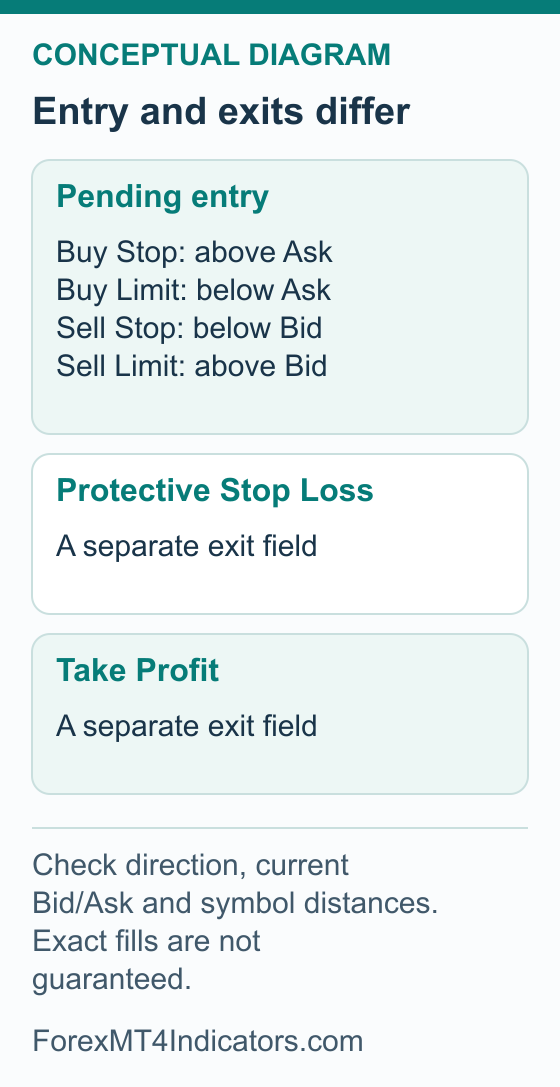
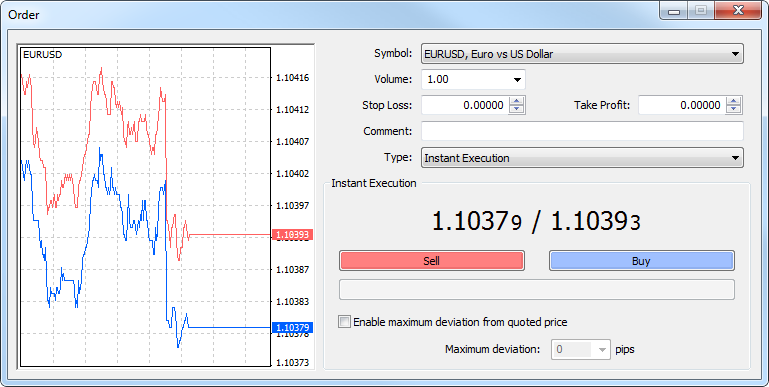
- Check Volume against your planned risk and the symbol’s contract size. Do not copy the example volume.
- Stop Loss and Take Profit are protective exit fields. Their zero values here do not mean protection has been set.
- Check the order type and execution method. A pending stop-entry order has a different purpose from a protective Stop Loss.
When XM MT4 does not behave as expected
| Symptom | First useful check | Recovery |
|---|---|---|
| Invalid account or no connection | MT4 designation, assigned server, number and trading password | Correct the mismatched detail; use XM’s official trading-password or server help if it persists. |
| Connected but unable to trade | Investor access, account permissions and symbol session | Use the correct trading access and check the exact rejection; do not reinstall automatically. |
| Invalid volume or insufficient margin | Contract, volume increment and available margin | Recalculate the practice size. Do not enlarge the demo balance merely to force an unexplained order through. |
| Invalid stops or locked modification | Price side, current quote, stops/freeze restrictions and price precision | Rework the price levels and size together. Removing protection to get acceptance defeats the exercise. |
| Chart time seems wrong | Broker server time versus your local time | Use the broker time converter with a confirmed offset, including any seasonal change. |
Compare the requested order, its accepted values and the closing record. Explain any difference before the next demo exercise.
For an Indonesia-based account, our Indonesia platform, account and server checks add the local account context to these connection steps. Keep the platform version and assigned server matched to the same account.
If an MT4 Expert Advisor or terminal-based alert needs continuous desktop operation, read the Global VPS setup and billing guide. Check the host, permissions and backup plan separately from the trading-account connection.
Connect your MT4 setup to the next useful task
The setup is useful when you can identify the account, read the symbol and explain a practice order’s result. Choose the next guide from the task you still need to complete.
- The profile works but MT4 does not: the login-help guide separates member-area credentials from trading-account access. Keep the MT4 server and account designation in the troubleshooting record.
- You want a phone-based account workflow: the XM app guide explains its role. The broker app and the MT4 terminal are not interchangeable interfaces.
- You are adding a gold chart: use the XM gold guide to inspect the exact symbol before applying an indicator or translating a price distance into risk.
- A practice position needs too much margin: use the leverage and margin examples. Changing leverage does not change the cash loss from the same position and price move.
- You want to understand the statement: the fees guide separates spread, commission and financing so the chart is not your only record.
Keep indicator installation and chart troubleshooting in this MT4 guide and its linked platform resources. Use the education guide for a structured practice plan rather than treating another indicator download as a substitute for understanding the account.
Common MT4 questions
Why does XM MT4 show an invalid account?
Check that the trading account was created for MT4, then match its account number, complete server name and trading password with the details supplied by XM. A website email login is not the trading account number. If the details match, ask XM to check the account’s current status.
Can I use an EX5 indicator in MT4?
No. MT4 uses compiled EX4 indicators; MQ4 is source that must compile successfully. Renaming an EX5 file does not convert an MT5 program. Use the correct MT4 package and the running terminal’s MQL4/Indicators folder.
Is a Buy Stop the same as a Stop Loss?
No. Buy Stop is a pending entry instruction. Stop Loss is a separate protective exit field. Choosing a pending stop entry does not add a protective Stop Loss to the future position.
Why can a sell trade’s stop trigger before the Bid chart reaches it?
MT4 checks protective exits on a short forex position against Ask. A Bid-only chart does not show that price. Inspect both quotes and the spread before concluding that the chart and exit disagree.
Sources and review scope
Public sources were checked on the dates below. Provider descriptions and public screens are distinguished from account tests; no funded account, execution or payment was tested.
- XM MT4 platform page · 2026-09-07 · Official broker entry and device selection, presentation varies by region. The response rechecked on 7 September named XM Global Limited, Belize; this footer does not establish eligibility for every reader. Checked 2026-09-07.
- MT4 Help: Install Terminal · 2026-09-06 · Installation wizard and directory choice. Checked 2026-09-06.
- MT4 Help: Authorization · 2026-09-06 · Account number, password and server; investor view-only rights. Checked 2026-09-06.
- MT4 Help: Navigator · 2026-09-06 · Login context command, built-in/custom indicator attach, EX4 executable display, MQL4/Indicators, Refresh. Checked 2026-09-06.
- MT4 Help: Market Watch · 2026-09-06 · Symbols, Show All, Chart Window, Specification and broker-defined contract restrictions. Checked 2026-09-06.
- MT4 Help: Terminal Start and Data Structure · 2026-09-06 · Current data folder and File menu access. Checked 2026-09-06.
- MT4 Help: Open Positions · 2026-09-06 · New Order, ticket fields, execution type and accepted Trade row. Checked 2026-09-06.
- MT4 Help: Placing of Pending Orders · 2026-09-06 · Pending Type, entry and optional protective fields. Checked 2026-09-06.
- MT4 Help: Modifying of Positions · 2026-09-06 · Modify or Delete Order, protective price changes and confirmation; zero means no exit. Checked 2026-09-06.
- MT4 Help: Modifying of Pending Orders · 2026-09-06 · Untriggered pending-entry/protection modification. Checked 2026-09-06.
- MT4 Help: Deletion of Pending Orders · 2026-09-06 · Cancel untriggered pending order, not open position. Checked 2026-09-06.
- MT4 Help: Position Close · 2026-09-06 · Selected close dialog, partial/full volume and Bid/Ask side of forex protective exits. Checked 2026-09-06.
- MT4 Help: Order Types · 2026-09-06 · Market and four pending types; separate protective Stop Loss and Take Profit. Checked 2026-09-06.
- XM MT4 public platform entry. Rechecked 12 September 2026. Advertised platform and EA support; no local installation or account execution test.