
To resolve an XM login problem, first identify whether you are entering the XM profile, an app, or an MT4/MT5 trading account. These can require different credentials and account details. Start from the official XM website, follow its Login link and use the recovery option for the credential actually being requested.
Start at the official login route
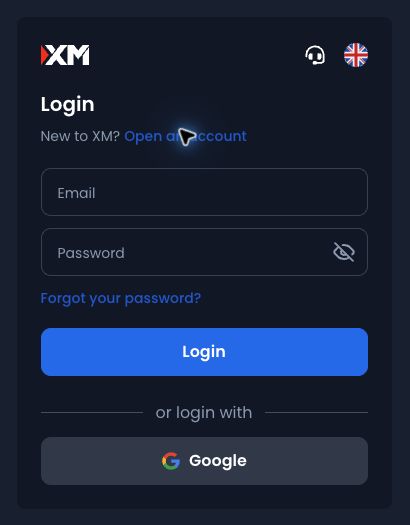
The Global-branded page at xmwebsite.online opened an email/password sign-in form with a password-recovery option when its Login link was followed on 12 September 2026. The previously checked Members Area is another recorded XM route. For your account, start from the official website for the company holding it; do not assume that every XM or XMTrading account uses the same portal.
This is an independent troubleshooting guide. Do not type credentials into comments, send them to someone claiming to be an account manager, or create a new profile simply because the existing login fails. A new registration does not recover the history or funds associated with an old account.
For XMTrading Japan, use the route described in our Japan overview. Similar branding does not make every login field or app interchangeable. If your route differs, verify it through the actual company’s official support.
Name the login surface before resetting anything
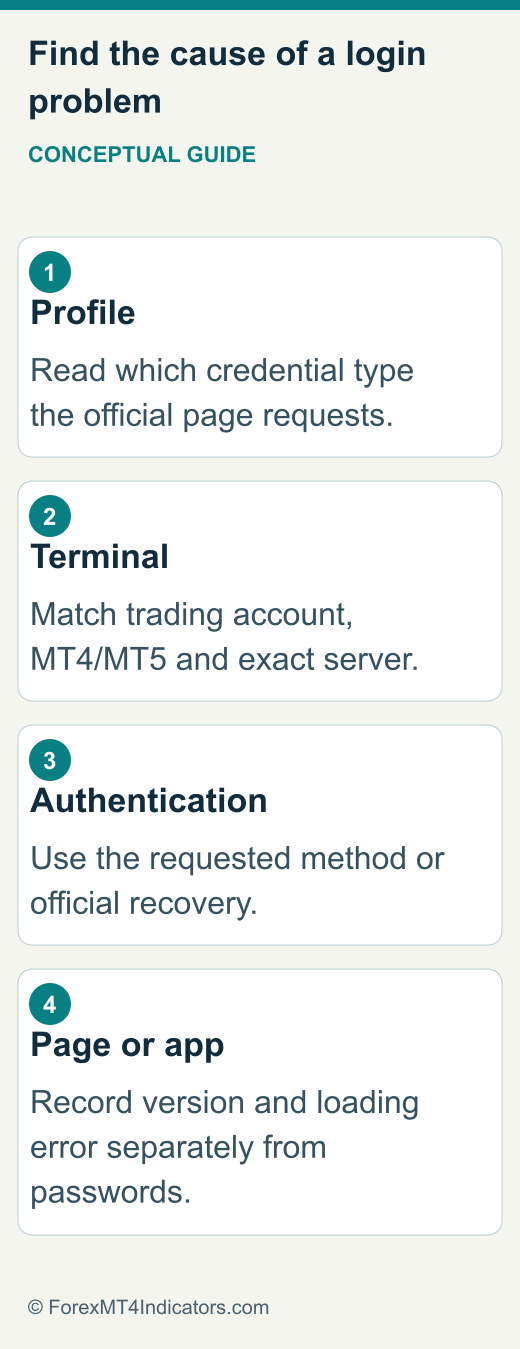
| Where the problem appears | Information to verify | Useful next action |
|---|---|---|
| XM profile or Members Area | Credential type requested on official sign-in page | Use that page’s account-recovery option |
| XM app | App identity, version and compatible account | Confirm the official app route |
| MT4 or MT5 | Trading-account number, password and exact server | Check the terminal-specific setup guide |
| Verification-code prompt | Required authentication method and access to it | Use official recovery if the method is unavailable |
| Page does not load | Address, network, browser and error | Diagnose loading separately from password validity |
An email field expects profile access; MetaTrader expects the trading account and server. Resetting the profile password should not be assumed to change the terminal’s trading password.
If the distinction is unfamiliar, the XM account-opening guide explains the relationship between your profile and the trading account created under it. Start with identity, not repeated password guesses.
Recover the credential the page actually requests
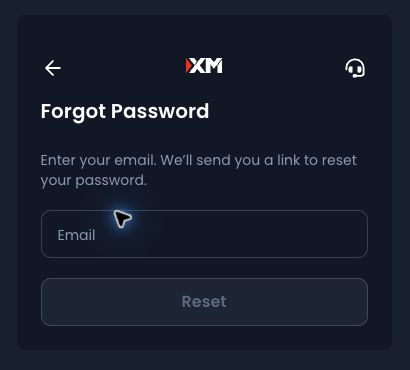
For the observed email/password form, choose its Forgot password option and follow the requested recovery process for the registered email. We observed the public starting screen; we did not submit a reset or test delivery of a recovery message. A trading-account password problem requires the account-specific recovery route instead.
Check the mailbox and spam folder for the request you made. If several links arrive, follow the latest valid instruction and avoid repeated reset requests while the first is pending.
If no message arrives, check the relevant mailbox and spam folder, then confirm which email address the account used. If you cannot access that mailbox, use official support to ask for the identity-verification recovery procedure. Do not try to replace the address by opening another person’s account or sending identity documents to an unverified contact.
Treat authentication-code problems separately
A correct password can still be followed by an authentication step. Read whether the prompt requires a code from an authenticator, email or another supported method. Do not assume a code from one channel satisfies a different prompt.
For a time-based authenticator, an incorrect device clock can be relevant, but it is only one possible cause. Check the phone’s automatic time setting and that you selected the intended account entry. Never share the setup secret, QR code, backup code or current one-time code with a helper.
If the phone was lost or the authentication method is inaccessible, request the official recovery route. Support may need to verify ownership before changing security access. This guide cannot promise a recovery time or that a particular verification document will be sufficient. Keep a case reference and ask which step is pending.
Fix terminal identity before diagnosing a broker outage
MT4 and MT5 are different terminals. Confirm that the trading account was created for the platform you are using. Next compare the exact server name with the account details supplied through the official account interface or original account message.
Match the complete server, including any demo/live distinction or numbered suffix. A similar broker name at the top of a search result is not a confirmed connection.
Use our XM MT4 setup guide or XM MT5 setup guide for platform-specific connection checks. If a terminal reports an invalid account, capture the exact message and selected server privately. A server mismatch can explain a failed connection without implying the profile or its balance is missing.
When login works but the expected account is missing
First distinguish the profile from the selected trading account. A successful profile login can open a dashboard where a different account, currency or demo/live state is selected. Review the account list and filters before concluding that an account disappeared.
Compare the known platform, account type and identifier with the details shown. If the account is archived, restricted or absent, ask support for its actual status and the available next step. Do not assume that creating an additional account will restore its history or transfer funds.
The XM account-management guide explains how to prepare records for additional-account and closure questions. If the missing information concerns a pending payment, the withdrawal guide is the appropriate task owner. Keep account access and payment tracing as related but separate support questions.
Diagnose browser or app loading problems carefully
A blank page, certificate warning or connection timeout is different from a rejected password. Record the address and exact error before trying a current supported browser or the verified official app route. If the page loads elsewhere, compare the environment without assuming the account credentials caused the first failure.
Do not bypass certificate warnings to submit credentials. Avoid alternate APKs, unofficial mirror sites and remote-control offers from strangers. Those shortcuts make it harder to know whether you are contacting the correct service.
For an app-only issue, record the exact store listing and version. Our XM app guide explains the two currently checked Android package names without inventing a regional mapping. Ask support whether your account is compatible with that package. Reinstallation should not be the first diagnostic step if you cannot recover the required login and authentication method.
Build a support request that can be answered
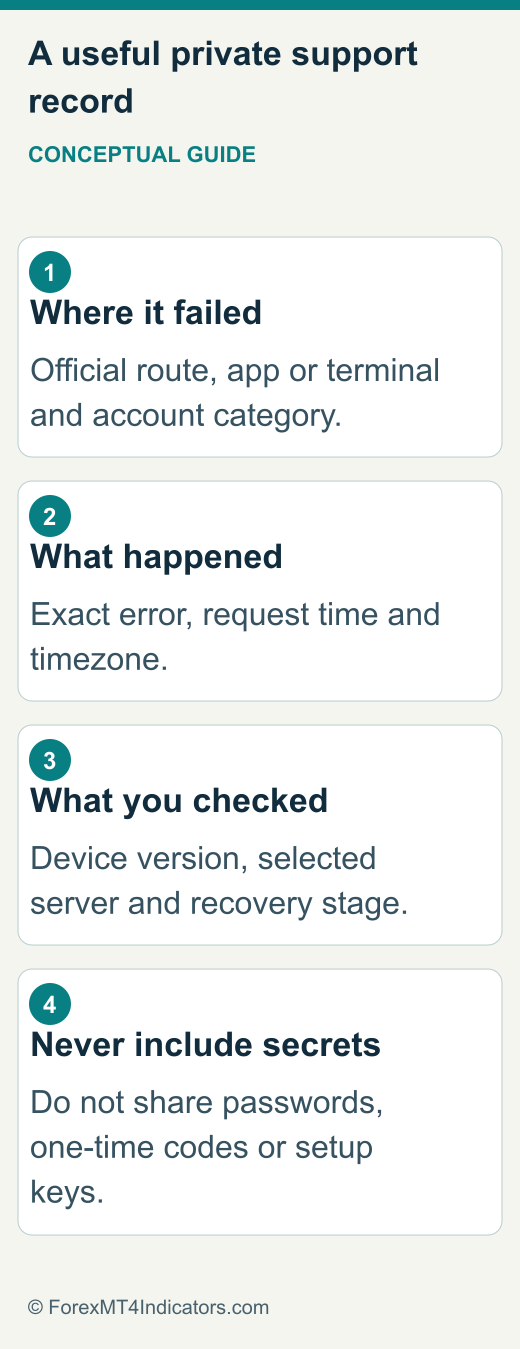
Give support a concise sequence: the official route used, the surface that failed, the approximate time and timezone, the exact error text and what you already checked. Include the device/browser or app version for a technical issue. Provide account-identifying information only through the verified private channel when requested.
For example: “I can enter my XM profile in the browser, but my MT5 account fails to connect on the server shown in my account details. The error is [exact wording]. Please confirm the account’s platform, server and current status.” This narrows the issue more effectively than “XM login broken.”
If you have an open support case, add new evidence to that case where possible. Ask which action is required from you and how you will be notified. Do not send passwords or security codes even when the person responding seems familiar.
Verify recovery before returning to trading
After access is restored, confirm the account identity, currency and demo/live state. Review current positions and pending requests, because a login repair does not itself close exposure or cancel a financial action. If activity appears unfamiliar, contact the official security/support route promptly and preserve relevant records.
Update your own private record of the correct account route and credential categories. A password manager can help keep profile credentials distinct from trading-account credentials, but its entries should clearly identify the intended site and account. Avoid ambiguous labels such as “XM password” for several different uses.
Before returning to trading, confirm that you can find the account details and official support again.
Frequently asked questions
Why does my XM password work in one place but not another?
You may be using different credential types, such as a profile password and a trading-account password. Confirm the prompt, platform and server before resetting anything.
Can this site reset my XM password?
No. Use the recovery process reached through the official XM website or ask its verified support team. Never share your password or authentication code here.
Does “invalid account” mean my money is gone?
The message alone does not establish that. Check platform, account number, server and status through official support. Keep any payment-tracing question separate and supported with its transaction reference.
Should I sign up again if I cannot log in?
A new profile is not a recovery tool. Establish ownership and restore the existing account through the official process first. Use new-account guidance only when there is a separate, legitimate account-opening task.
Sources and review scope
Public sources were checked on the dates below. Provider descriptions and public screens are distinguished from account tests; no funded account, execution or payment was tested.
- XM app · 2026-09-09 · XM Global public feature page; account compatibility not tested
- XM Members Area · 2026-09-09 · Reached from official XM app page Login link; private UI not accessed
- XM Help Center · 2026-09-09 · Official help entry; account-specific support was not tested
- XM Global public login and recovery entry. Observed 12 September 2026. Email/password fields and recovery option only; no sign-in or password-reset test.