
A trading account has several moving parts: the company holding it, the account settings, the payment route and the platform connection. Get those details straight before focusing on spreads or promotions. This guide explains the Japan-specific checks in English, with Japanese menu labels where they help you find the right screen.
For other countries, use our XM country guide hub. Our global XM review explains the broader brand, but its regional examples do not replace XMTrading Japan terms. The instructions here draw on public provider guidance checked on September 7, 2026; diagrams are conceptual, the platform illustration is a generic documentation example, and we have not submitted an account application or tested a payment.
Which XM service applies in Japan?
XMTrading’s Japanese guidance directs residents of Japan to XMTrading, rather than the separate XM Global registration journey. Japanese citizenship alone does not establish which service applies if you live elsewhere. Enter your actual residence and personal details, and read the company name on the agreement presented to you. See the provider’s explanation of the two services.
Japan regulation needs a separate check. Japan’s Financial Services Agency lists Tradexfin Limited, operating as XMTRADING/XMTrading, in its warning list for providing online over-the-counter derivatives solicitation without Japanese registration. The entry records an August 2020 warning and remains on the current list. Read the Japan FSA notice before deciding whether to proceed.
XMTrading discloses Tradexfin’s Seychelles FSA licence SD010 and Fintrade’s Mauritius FSC licence GB20025835. These are the provider’s offshore licence disclosures, not Japanese registration. Seychelles FSA and Japan FSA are different regulators. Compare that distinction with your requirements for oversight, complaints and fund protection using our forex broker selection guide.
How do you register an XMTrading profile?
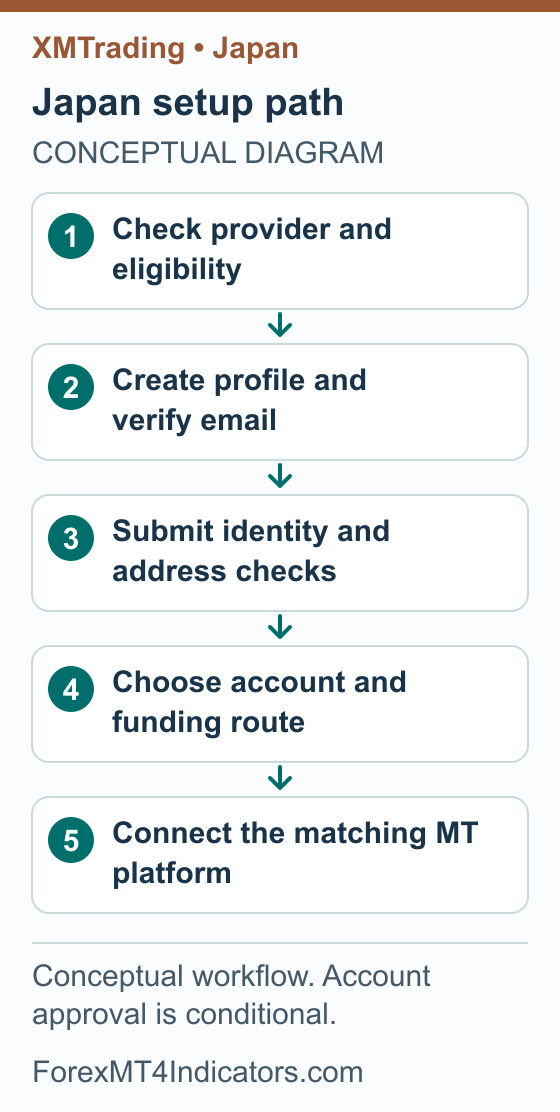
Start at the official Japanese XMTrading website and its registration entry. If you already have a profile, recover access to it instead of creating another identity with a second email address. XMTrading distinguishes a profile from additional trading accounts held within that profile.
- Check the destination. Confirm the XMTrading brand, your actual country of residence and the provider named in the terms before entering personal information.
- Complete registration. Enter the requested details, an email address you control and a unique portal password. Read the agreements before accepting them.
- Verify your email. Open the registration email and follow its email-confirmation action. If it does not arrive, check the address spelling and spam folder.
- Open your profile. Complete the personal and investor-information questions accurately. A newly displayed trading account does not mean the identity review has finished.
- Keep the confirmations. Record which email belongs to the portal and which account number belongs to MetaTrader. Store credentials privately.
Read the first registration form
These captures show two parts of the same blank XMTrading registration form on 7 September 2026. Japan is selected and Fintrade Limited is displayed. No personal details were entered and no application was submitted.
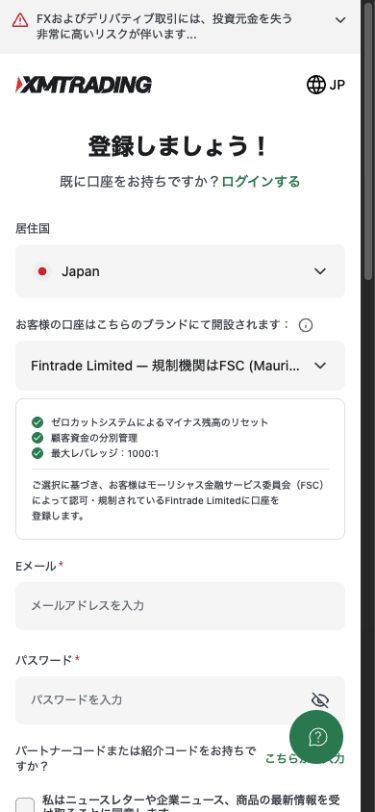
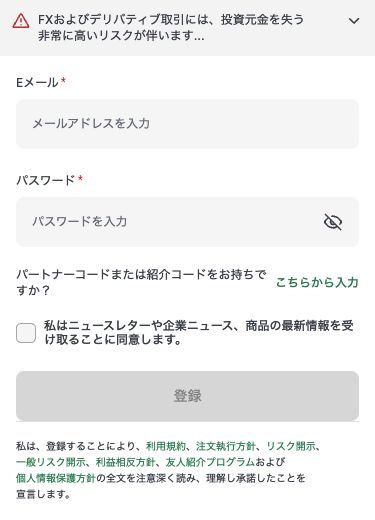
- Confirm the provider serves your actual residence and read the agreement shown in your form.
- Use an email address you control and a unique Portal password. Make a separate choice about the optional newsletter.
- After registration, follow the email-confirmation message and complete the personal and investor-profile checks requested.
The provider’s registration troubleshooting guide covers email confirmation and duplicate-profile problems. Do not change your country or identity details to get past an eligibility message.
Which documents are needed, and how do you verify them?
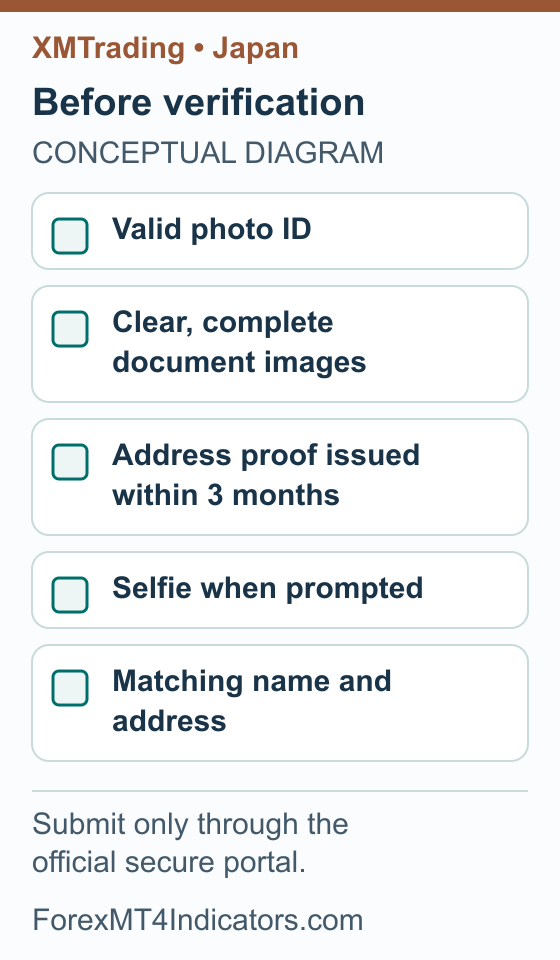
XMTrading’s verification requirements include a valid identity document, a selfie and proof of address issued within the past 3 months. Follow the document choices presented for your profile; a document accepted for somebody else’s circumstances may not meet yours.
- Prepare the originals. Check that your photo ID is valid and the address document shows your current name and residential address.
- Open the verification request. Read the accepted document types and upload requirements before choosing files.
- Capture readable images. Keep the complete document visible. Remove glare, blur and shadows; do not alter the document’s contents.
- Complete the prompted identity check. Follow the selfie instructions and upload the requested address evidence through the official secure process.
- Check the result. Read the profile’s verification status and any follow-up request. An upload receipt confirms submission, not approval.
Published Android example: find the document request
XMTrading Labo’s document-upload guide, updated 24 May 2026, illustrates the Android app route. These published screens help identify the controls; they do not show documents submitted or approved for this guide.
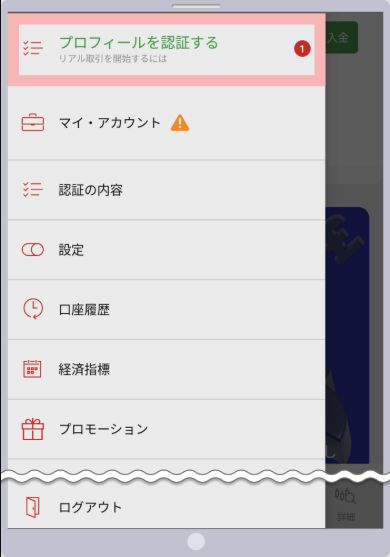
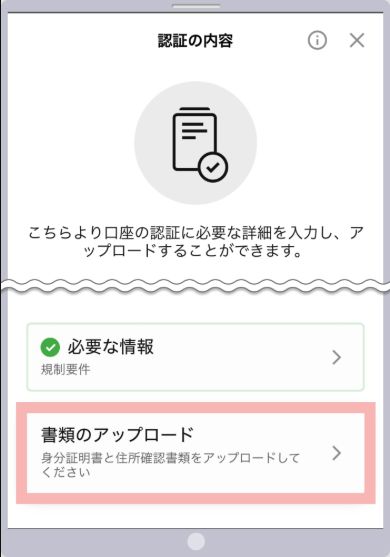
- Use the current request in your own account to identify the required evidence and file conditions.
- An upload area is not an approval screen. Read the actual status and any follow-up request after completing your own process.
Public document examples include a passport, driving licence and My Number card. Follow the requested document and sides in your verification screen; the provider explains image preparation in its document guide.
A name or address mismatch needs a correction supported by your documents. Repeatedly uploading the same rejected file adds little; identify the stated reason and address that specific issue. Keep identity documents out of public comments and social messages.
Which account type and base currency should you compare?
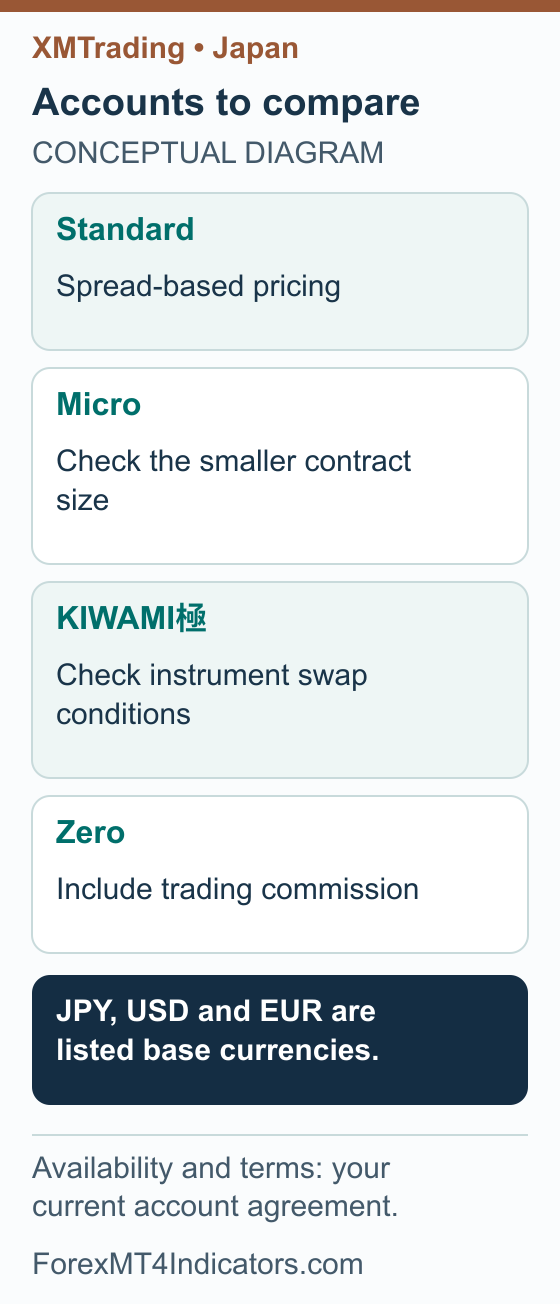
The current XMTrading account table lists Standard, Micro, KIWAMI極 and Zero, each with USD, EUR and JPY base currencies. Its FAQ says the initial profile creates an MT5 Standard account in JPY with 1000:1 leverage. Treat that as a default to inspect, not a suggested level of risk.
| Account | Useful distinction | What to check |
|---|---|---|
| Standard | Spread-based pricing without a separate trading commission in the published table. | Typical spread and overnight costs on your chosen symbol. |
| Micro | A smaller contract size for forex. | Contract size, minimum volume and volume step for MT4 or MT5. |
| KIWAMI極 | No separate trading commission; swap-free treatment on selected instruments. | The actual instrument’s swap conditions, rather than assuming every position is exempt. |
| Zero | Separate trading commission alongside spreads. | Total opening and closing cost, including commission. |
Sources: XMTrading’s Standard, Micro, KIWAMI極 and Zero specifications.
JPY can make balance tracking easier when you budget in yen. It does not make every deposit, withdrawal or trade free of currency conversion. Check the payment currency and quoted conversion separately; our reference-rate currency converter gives a comparison point, not an executable broker rate.
How to create an additional account
If the initial account is unsuitable, XMTrading says its type cannot be changed. After verification, use the additional-account process. The current desktop portal guide shows this sequence:
- Select the + control in the portal, choose Real and continue.
- Select MT4 or MT5, then the account type offered.
- Choose the available leverage, base currency and account name. Read the account terms before accepting.
- Set the trading-account password and finish the request.
- Check the new account confirmation and save its account number and server. Select that account before funding it.
Published Portal example: separate the account choices
XMTrading Labo’s additional-account guide, updated 20 August 2026, illustrates separate platform and account-type choices. The account number 12345678 and ¥10,000 balance are the publisher’s sample data, not our account or a recommended balance.
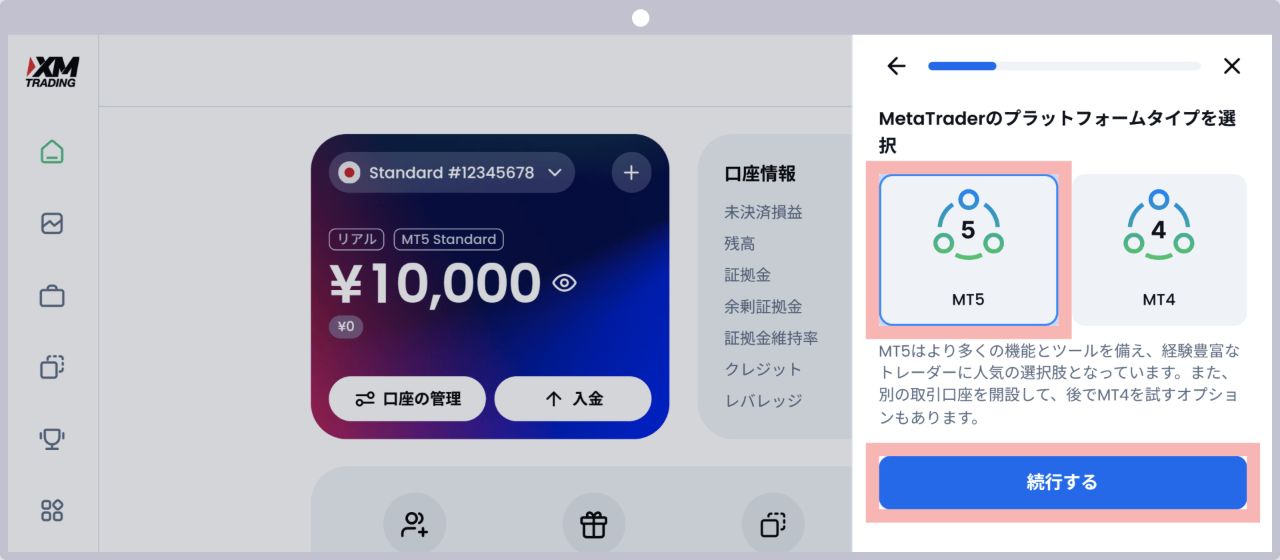
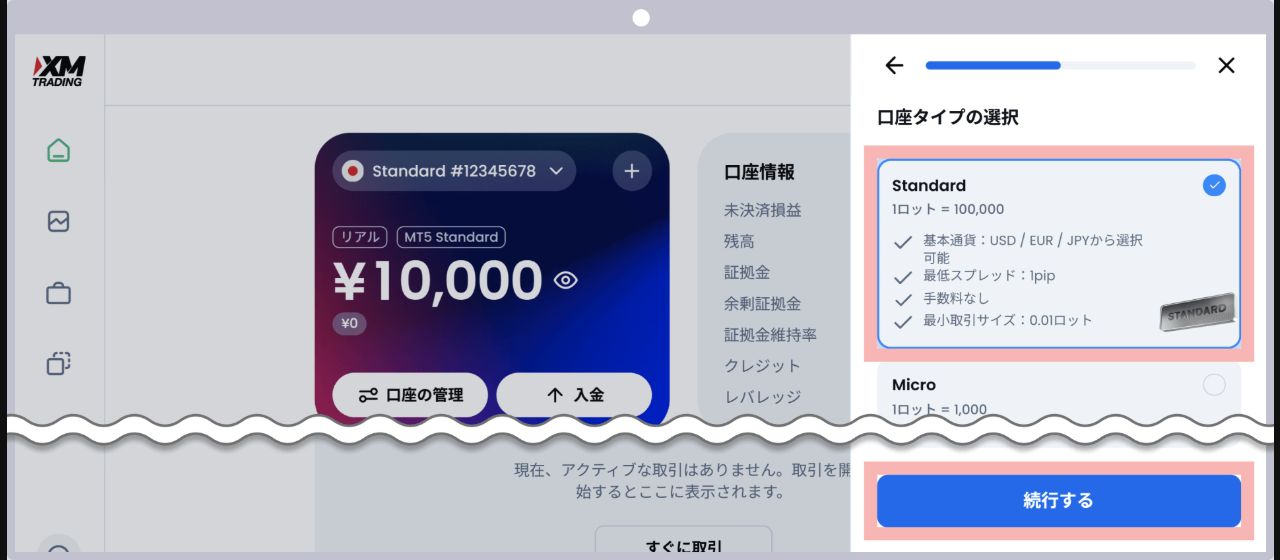
- Keep platform choice separate from account type. A familiar account name does not make an MT4 indicator compatible with MT5.
- In the following account-details stage, read the available base currency and other conditions before confirming. The images here do not show an account opened for this guide.
Do not copy the same lot volume from Standard to Micro without checking the contract. An identical number in the volume field can represent a different exposure. Account selection should solve a cost or sizing need, not follow the largest promotional headline.
How do you deposit money from Japan?
XMTrading lists bank transfers, cards and electronic wallets as broad funding categories. Its public minimum is $5, but the funding FAQ explicitly says payment-method minimums vary. Check the JPY amount, fees and withdrawal route shown for the method available to your verified account.
- Select the receiving account. Match the account number and JPY, USD or EUR base currency before opening its deposit section.
- Read the displayed method. Check its minimum, maximum, supported currency and any prior-use or verification condition. A listed option may still have conditions.
- Enter the amount. Review the amount charged and expected account credit. For a bank transfer, copy the current recipient and reference instructions from your account.
- Use your own payment details. Complete the bank or payment-provider authentication required for that route.
- Save and reconcile. Keep the receipt, then compare the deposit history and confirmation email with the receiving account’s balance.
Published Android example: find Deposit
XMTrading Labo’s funding guide, updated 31 July 2026, illustrates these Android XMTD TraderPro controls. Account 12345678 and the 100,000 JPY balance are publisher sample data; no payment was made for this guide.
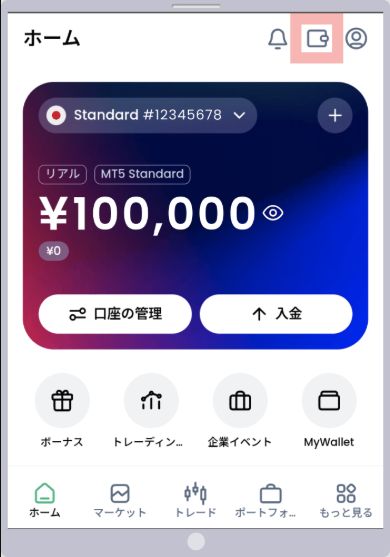
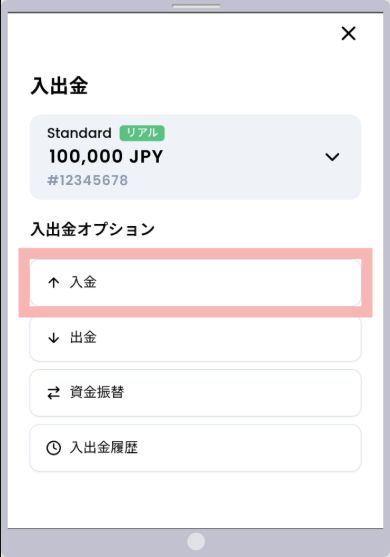
- Open the wallet, check the account shown at the top and select 入金 (Deposit).
- Read the current method conditions and review the amount in your own account using the checks above. The sample balance is not a suggested deposit.
The provider’s card funding instructions show selecting an account and its deposit action, followed by the method and amount. They also describe conditions affecting card availability. Do not assume a bank or card logo elsewhere on the website confirms your individual route.
If money has left your bank but the trading balance has not changed, check the receiving account number, payment reference and history before sending another payment. XMTrading’s missing-deposit guidance identifies wrong-account selection, incomplete references and third-party payments as causes of problems. Use an account or payment method in your own registered name.
XMTrading Japan bonuses: what is advertised, and who qualifies?
Checked 8 September 2026: XMTrading’s Japanese account comparison advertises ¥13,000 of account-opening credit. Standard and Micro also advertise a two-tier deposit bonus; KIWAMI極 and Zero do not qualify for that deposit promotion. The account-opening offer is separate. These are public advertisements, not confirmation that your application or our referral link qualifies.
| Account | Advertised opening credit | Advertised deposit credit |
|---|---|---|
| Standard / Micro | ¥13,000, subject to the applicable offer | 100% tier capped at USD 500, then 20% tier capped at USD 10,000 |
| KIWAMI極 / Zero | ¥13,000, subject to the applicable offer | Excluded |
The possible benefit is extra trading margin alongside your own money. Compare spreads, commissions and withdrawal plans before choosing a bonus account. More credit does not reduce a trade’s market risk or justify a larger position. For the terminology, see our XM bonus guide; its XM Global worked example uses a different schedule.
What would a deposit and withdrawal do to the credit?
The Japanese deposit-bonus explanation and matched Tradexfin/Fintrade programme terms describe a combined credit cap of USD 10,500. The credit cannot be withdrawn, and withdrawing money removes credit proportionally.
Conditional example: assume eligibility, unused bonus tiers, a USD account, and no trading, costs or open positions. A USD 1,000 deposit produces USD 500 plus 20% of the remaining USD 500: USD 600 credit. Withdrawing USD 250 removes 25% of that credit, or USD 150. The account then has USD 750 cash and USD 450 credit. Their USD 1,200 total is not withdrawable cash. Your actual account can differ; a JPY account also needs the provider’s conversion basis.
How to check and activate an eligible Japan offer
- Match the service and company. Use the Japan registration route above and read the agreement supplied to your actual residence.
- Check your account. Confirm the precise account type and whether it accepts deposit credit. Do not switch accounts for a headline amount alone.
- Read both programmes separately. Obtain the current opening-credit conditions, deadline and profit-withdrawal rules, then the deposit-credit schedule. This review has not established the specific claiming or profit-withdrawal conditions for the advertised ¥13,000 offer.
- Follow the acceptance instructions shown to you. Complete the required verification and any offer activation. Save the terms before making an affordable deposit.
- Check the account statement. Confirm cash and credit separately. If the result differs, contact official support with the offer reference; another deposit is not a reliable fix.
Keep the Japan FSA distinction explained earlier in view. Neither an advertised bonus nor a completed application establishes Japanese authorisation. We have not opened, funded or claimed a bonus on a Japan account.
How do you request and track a withdrawal?
Plan the way out before the first deposit. A payment method suitable for deposits may not receive every part of a withdrawal. XMTrading’s card guidance distinguishes returns to a deposit card from other payouts, so check how both deposited money and any trading profit would reach you.
- Check the available amount. Confirm verification, open positions, any credit conditions and the withdrawal amount the portal permits.
- Choose the account and withdrawal route. Use the methods offered for that account and funding history. Ask support about an unavailable or expired original payment method.
- Check the destination. Review the recipient name, currency, account details, minimum and fees before continuing.
- Review the request once. Confirm the amount and complete any security check presented. Avoid duplicate requests while the first one is unresolved.
- Keep a record. Save the request reference, amount, method and time. Track the request information in the portal and its notifications.
- Confirm receipt separately. Compare the broker’s processing confirmation with the bank or card statement. Record the amount received and any deductions.
Published Android example: choose, review and track a withdrawal
XMTrading Labo’s withdrawal guide, updated 3 August 2026 and checked here on 8 September 2026, illustrates the Android XMTD TraderPro route below. Account 12345678, the 100,000 JPY balance and the 1,000 JPY request are publisher sample data. These selected screens do not show a withdrawal we requested or received, and they do not reproduce every intervening notice or form field.
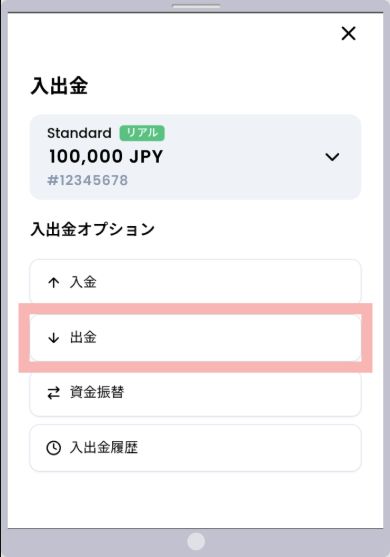
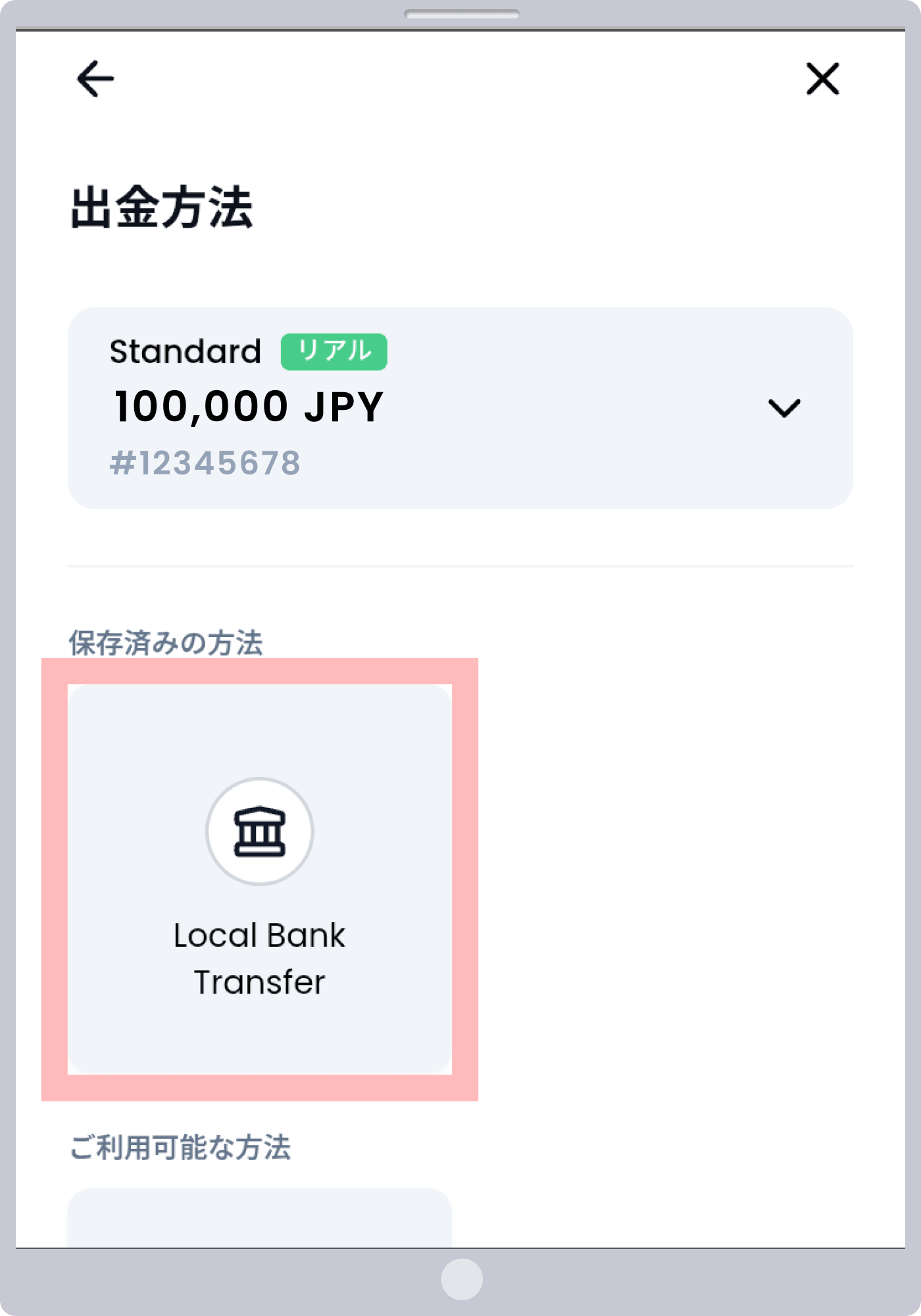
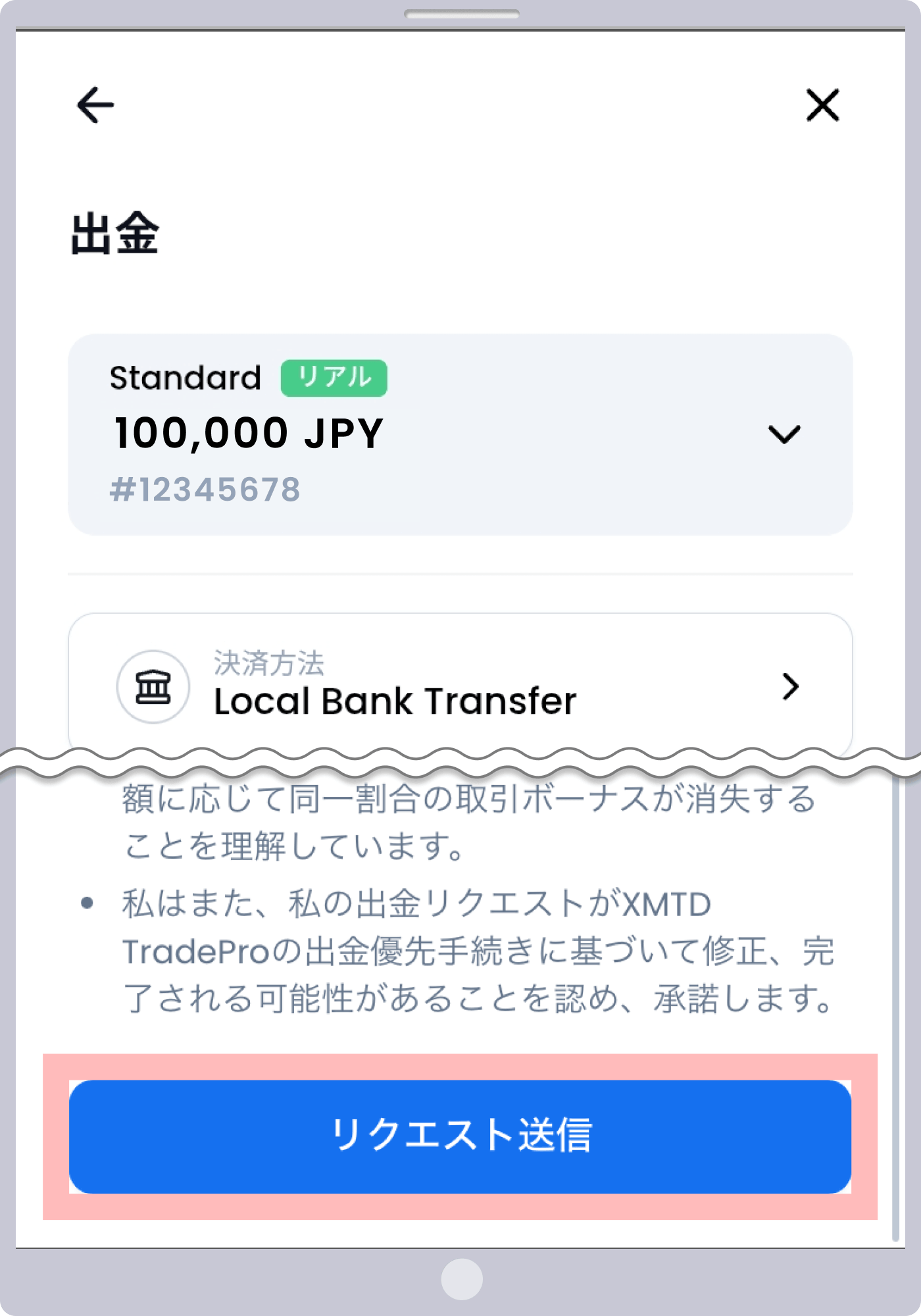
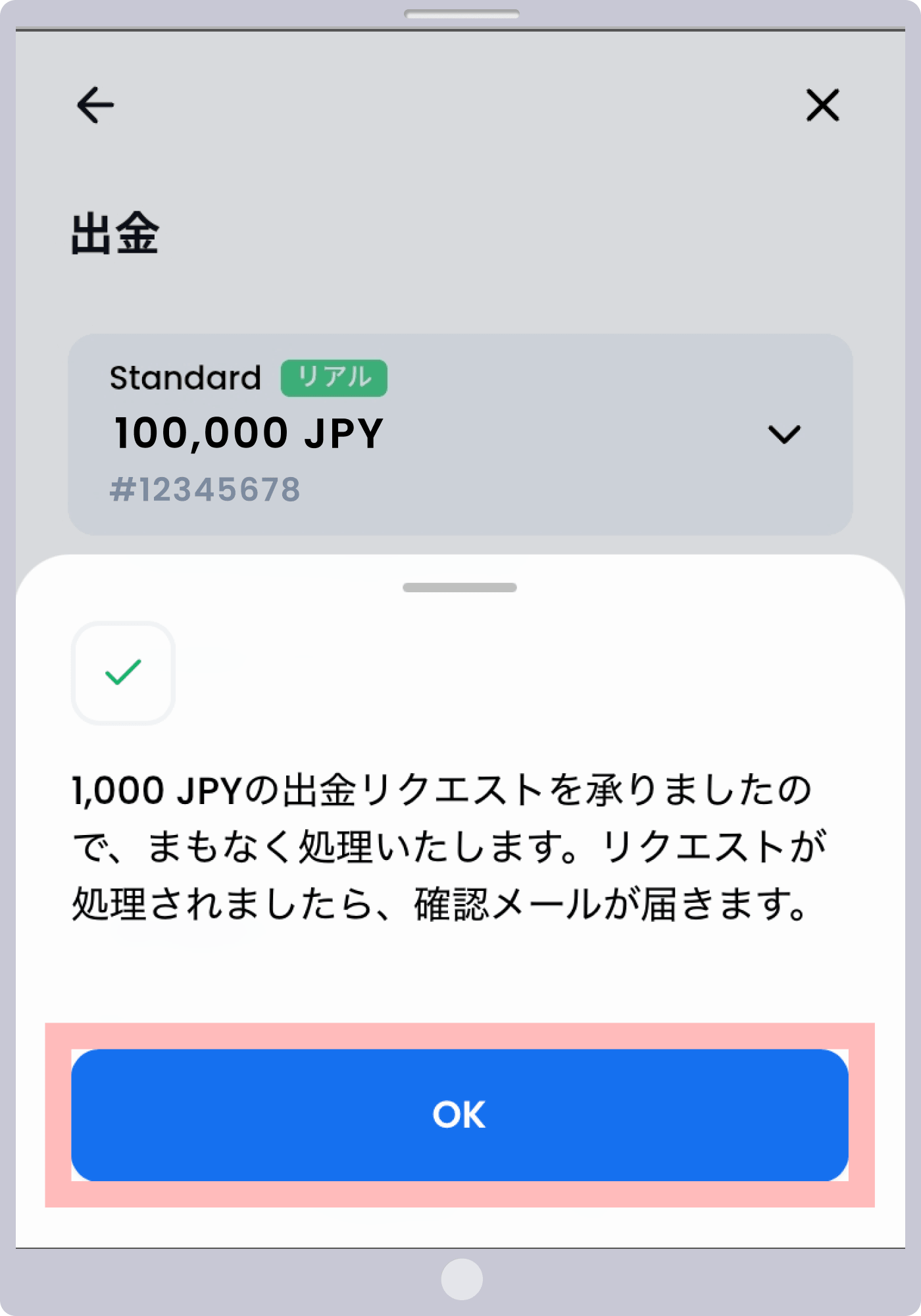
- Open the wallet and select 出金 (Withdrawal) for the intended account.
- Use 入出金履歴 (Deposit/withdrawal history) to review the account record. Keep the request status separate from confirmation that money reached the receiving institution.
XMTrading says bank and card withdrawals normally take 2–5 business days to arrive. That is a provider estimate, not a deadline for every request, and processing is different from receipt. Check the current withdrawal timing and fee guidance. Our broker withdrawal checklist explains the wider record-keeping process.
A JPY balance example before you withdraw
Suppose a hypothetical account has JPY 100,000 equity, JPY 20,000 used margin and no floating change or bonus credit. Its margin level is 100,000 ÷ 20,000 × 100 = 500%. Withdrawing JPY 30,000 while the margin requirement stays unchanged leaves JPY 70,000 equity and a 350% margin level.
The withdrawal removes part of the cushion supporting open positions. This example does not identify a safe threshold or promise the request will be permitted. Recalculate with your actual positions and account rules before withdrawing. Avoid judging the amount available from the balance alone.
How do you connect XMTrading to MT4 or MT5?
The XMTrading Portal login uses your registered email, portal password and authentication code when requested. MetaTrader uses a trading-account number, trading password and server. A password that opens the portal is not proof you have the correct MetaTrader credentials.
- Find the account details. In the portal, open 口座の管理 (Manage accounts), then MetaTraderログイン情報 (MetaTrader login information). Check the account number, platform and server.
- Install the matching platform. Follow XMTrading’s official platform download links. Use MT4 for an MT4 account and MT5 for an MT5 account.
- Open the desktop login dialog. In MetaTrader, choose File → Login to Trade Account.
- Enter the trading credentials. Use the account number, trading password and exact server assigned to that account. Check copied text for extra spaces.
- Confirm the connection. Check the displayed account and connection status before inspecting quotes. An investor password provides read-only access, so use the trading password when trade access is needed.
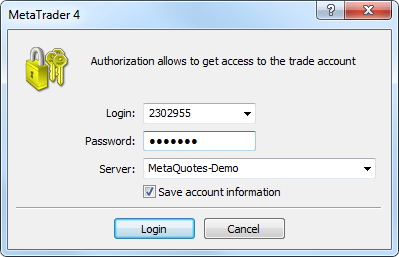
These steps follow the provider’s account-information guide and desktop MetaTrader login guide. A quiet chart outside the symbol’s trading session does not by itself prove the connection failed.
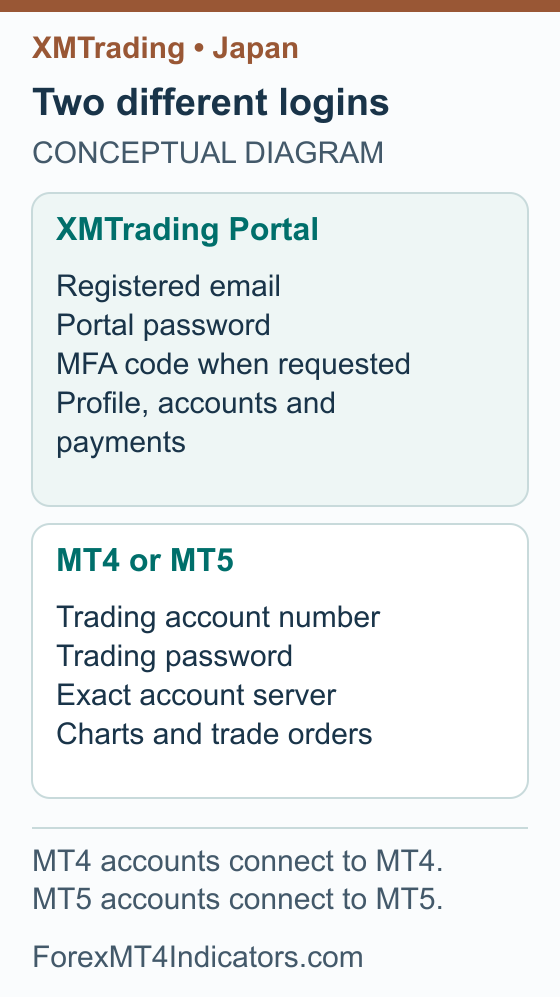
For broader platform explanations, read our XM MT4 setup guide or XM MT5 setup guide; keep the XMTrading account details above for Japan. Use a demo to practise order entry before taking financial risk.
What should you check when a step fails?
- Japan is absent from registration: check the brand and residence route. Do not select another country to force acceptance.
- Verification stays pending: read the specific document request. Correct the mismatch or unreadable image rather than uploading unchanged files.
- The portal accepts your password but MT4 does not: check the trading-account credentials, platform version and server.
- A deposit is missing: match the bank receipt to the account number and deposit history before retrying.
- A processed withdrawal has not arrived: ask for the payment reference and whether it has been released to the payment provider.
For account help, follow the provider’s Help Center guide and search by keyword or category. Find it through the help or support options in your official account. A useful support request contains the relevant account number, event time with time zone, payment or error reference and a short description. Never include passwords or one-time authentication codes.
Before a first order, set a loss budget in yen. A hypothetical 1% of JPY 100,000 is JPY 1,000, not the amount of margin you can spend. Use the position-size calculator with the actual contract and stop distance, allowing for trading costs. Slippage can take the eventual loss beyond the planned amount.
Forex and CFD trading carries a high level of risk and may not be suitable for all traders. The strategies and indicators described in this article are educational. Past performance does not guarantee future results. Always test on a demo account before risking real capital.
Detailed XMTrading guides in Japanese
This page keeps the Japan account journey together in English. The following Japanese guides answer separate product and task questions, using XMTrading’s Japan terms and the Japan affiliate route.
XMTD TraderProアプリの使い方
Official app access, mobile tasks, desktop-only functions and account security.
XMTradingコピートレードの始め方
Investor setup, strategy checks, allocation and the difference between deposited funds and bonuses.
XMTradingの取引コストと手数料
Spread, commission, financing and account comparisons with worked examples.
XMTrading VPSの条件と設定確認
The current Standard and premium plan conditions, billing checks and a careful setup workflow.
XMTradingロイヤルティプログラムとXMP
Status, eligible activity and redemption questions, kept separate from Global Traders Club.
XMTradingの取引時間を日本時間で確認
Server-time conversion, date changes, symbol sessions and closed-market troubleshooting.
These are task guides, not translated duplicates of this overview. Follow the account and funding instructions above for the overall journey, then use the relevant Japanese guide for the detailed product question. A public provider illustration is identified as such; it does not represent a deposit, trade or withdrawal performed by this site.
Frequently asked questions
Is XMTrading registered with Japan’s FSA?
The offshore licences disclosed by XMTrading are not Japanese registration. Japan FSA’s warning list names Tradexfin Limited and the XMTRADING/XMTrading service for online derivatives solicitation without registration. Read that notice and the legal entity on your agreement before making a decision.
Can a Japanese citizen living overseas use this guide?
The Japan journey is framed around residence, not a passport alone. A Japanese citizen living elsewhere should check the service applicable to their actual residence and circumstances. Do not choose Japan on a form merely to reproduce the account settings described here.
Can I open a JPY account?
JPY is listed alongside USD and EUR in XMTrading’s current account comparison. Check the currency on the actual account before funding it. Selecting JPY does not remove every conversion cost, especially where the payment currency or the traded instrument differs.
Why did registration give me an MT5 Standard account?
XMTrading’s account FAQ describes that as the initial account generated during profile creation, with JPY as its base currency. After verification, the additional-account process lets you select from the settings available to you. Check them before sending a deposit.
Does the $5 minimum mean I should deposit only $5?
No. The advertised account minimum and a payment method’s minimum are separate checks. Neither sets a suitable trading budget. Work backwards from the loss you can afford, the planned stop and the smallest position your chosen contract permits.
Does a low spread make Zero the cheapest account?
Not by itself. Zero charges trading commission, so compare the complete opening and closing cost for the same instrument and exposure. If you hold positions overnight, include the applicable swap costs. An advertised minimum spread is not every quote you receive.
Does a processed withdrawal mean the money is in my bank?
No. Broker processing and bank receipt are different stages. Keep the confirmation and check the destination statement separately. If the expected receipt window has passed, provide the request reference and ask support which stage the payment has reached.
What bonus amount should I expect?
The dated Japan bonus comparison above lists the current public advertisements and account exclusions. Confirm the specific offer assigned to you before relying on an amount.
Sources and review scope
Public sources were checked on the dates below. Provider descriptions and public screens are distinguished from account tests; no funded account, execution or payment was tested.
- XMTrading Japanese regulation disclosures · 2026-09-07
- Japan FSA unregistered financial instruments business warning list · 2026-09-07
- XMTrading Japanese account comparison · 2026-09-07
- XMTrading KIWAMI account · 2026-09-07
- XMTrading Zero account · 2026-09-07
- XMTrading Japanese funding and withdrawals · 2026-09-07
- XMTrading Labo account-opening problems · 2026-09-07
- XMTrading Portal login troubleshooting · 2026-09-07
- XMTrading deposits not showing troubleshooting · 2026-09-07
- XMTrading card deposit problems · 2026-09-07
- XMTrading Micro account specifications · 2026-09-07
- XMTrading Portal: create an additional account · 2026-09-07
- XMTrading Portal: account information · 2026-09-07
- XMTrading: MT4 and MT5 desktop login · 2026-09-07
- XMTrading Standard account specifications · 2026-09-07
- XMTrading Portal: desktop login · 2026-09-07
- XMTrading: identity and address document preparation · 2026-09-07
- XMTrading Portal: Help Center · 2026-09-07
- MetaQuotes MT4 Help: Authorization · 2026-09-06
- XMTrading Japan account types
- XMTrading Japanese deposit bonus explanation
- XMTrading matched deposit programme terms