
The XM app brings account access, trading and chart tools together. The Global page observed on 12 September 2026 advertises integrated TradingView charts, watchlists, alerts and XM AI. Start with the app route offered for your account and device; a public feature list does not prove every account has the same access.
Choose the official app route before downloading
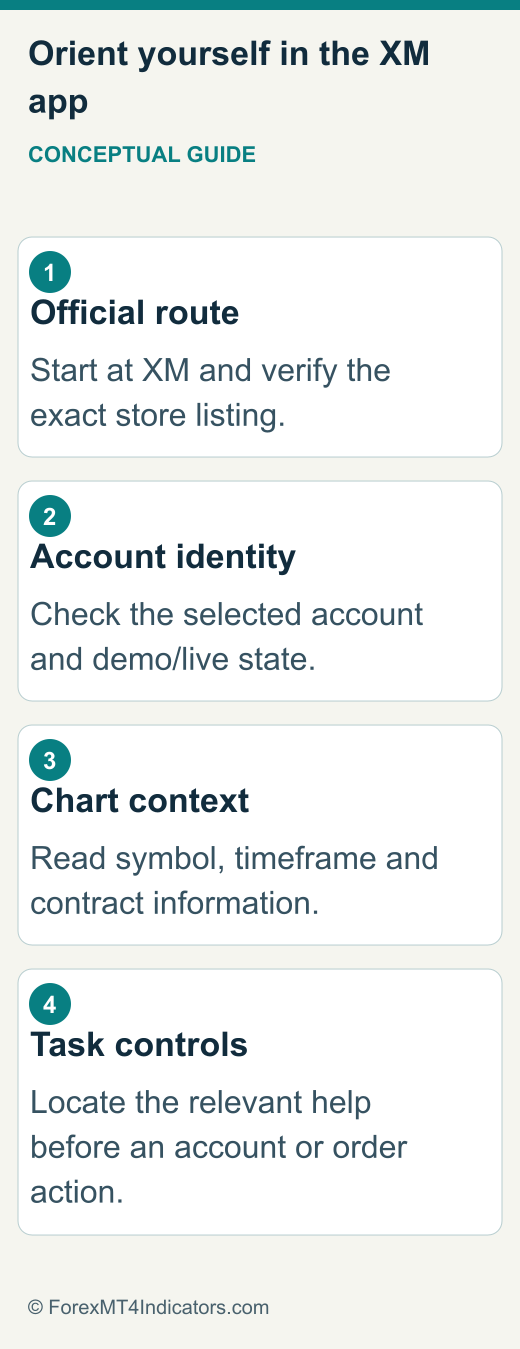
Open the official XM app page from the XM website used for your account. Check the address and legal company, then follow the available store or browser option. Avoid choosing an unofficial download simply because it appears above the official result. A lookalike name or logo is not sufficient evidence of the publisher.
The Global product page was checked again on 12 September 2026 and describes mobile, desktop-browser and tablet access. The public listing is a starting point; account compatibility and features must match the route offered to you.
Keep Japan separate. XMTD TraderPro belongs to the XMTrading journey, covered in our Japanese app guide. An English XM app review should not be used as a substitute for Japanese product instructions or eligibility.
Why there are two XM Android names in search
| Checked listing | Android package | What the check establishes |
|---|---|---|
| XM 360 – Trading App | com.xm.webapp.global | A separate Trading Point Group store listing |
| XM App – Trade with confidence | com.xm.webapp | A separate Trading Point Group store listing |
The XM 360 listing and XM App listing were checked in the 9 September research. They identify Trading Point Group and XM-domain support details. These identity checks do not prove that either listing is offered in your store or will accept your particular account.
Do not interpret the suffix “global” as a country-eligibility rule. The checked evidence also does not establish that one package replaces the other. If both appear, ask XM which exact package belongs to your account, giving the store name, device operating system and legal entity. Do not install an alternate APK to bypass a store restriction.
Decide whether the app or MetaTrader fits the task
The XM app is useful to investigate when you want account access alongside charts and trading tools. MetaTrader is a separate platform family with its own login details, features and supported custom software. An account visible in one interface should not lead you to assume that every tool or chart setting transfers into another.
For platform setup, use our XM MT4 guide or XM MT5 guide. Those pages own server selection and terminal connection. The app guide focuses on verifying the app, selecting the right account context and understanding the public feature set.
Use the account interface for profile and payment tasks. Use the supported MetaTrader terminal when a tool requires desktop MQL4 or MQL5. A TradingView chart inside an app does not run a downloaded MetaTrader indicator.
Make the first session an orientation session
Before any trade, establish which account is selected and whether it is demo or live. Note its currency and account identifier privately. A familiar balance amount does not prove you are in the intended account, especially when several accounts share the same profile.
- Enter through the official app or browser route confirmed for your account.
- Read the sign-in prompt and use the credential type it requests.
- Identify the selected account and demo/live state before opening a trading screen.
- Locate account details, support and help so you know where to resolve a problem.
- Review any risk or product message presented for that account before moving on.
These are orientation checks, not a claim that every version has identical button names. If a menu is absent, record the app version and account type and ask support whether the feature is enabled. The XM login guide separates profile-password issues from trading-account problems.
Read the chart without confusing it with an order
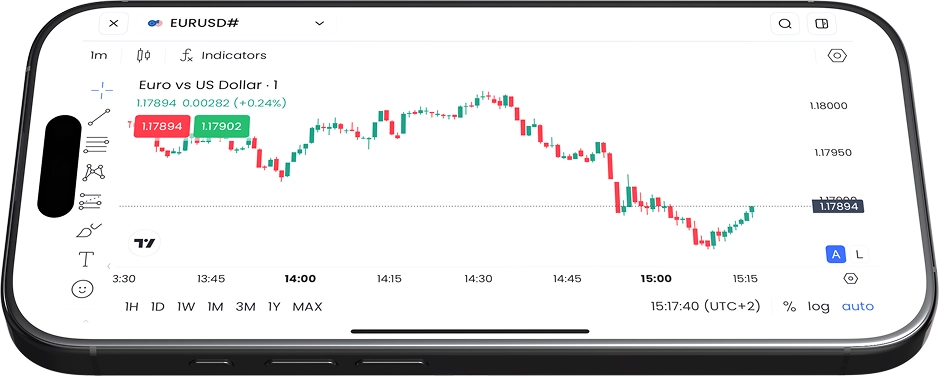
Start with the symbol name, timeframe, price scale and time display. Confirm that the instrument is the one available in your selected account, including any suffix. A chart that resembles another gold or currency feed can still have a different contract, session or displayed price side.
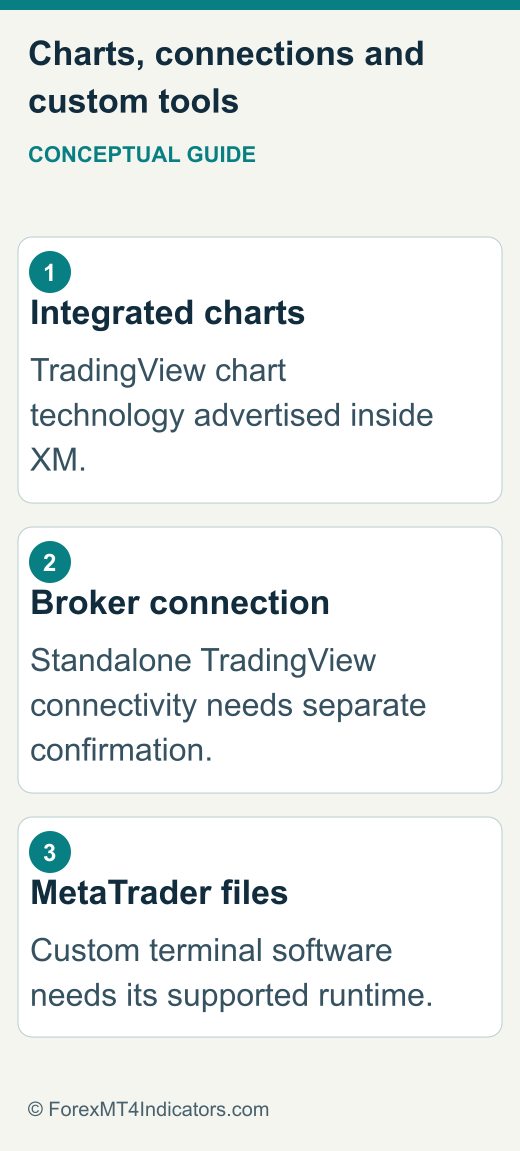
XM advertises integrated TradingView charts. This means TradingView chart technology inside the XM experience. It does not, by itself, prove that you can select XM as a connected broker in the standalone TradingView trading panel. Chart technology, account integration and automated order routing are separate questions.
What does the advertised XM AI feature add?
The current Global app page presents XM AI as a way to ask market questions and obtain reviews or summaries beside the charts. We inspected that public description, not a signed-in AI conversation, so response quality, current-data coverage and account availability were not tested.
Use a market summary as a prompt for checking the underlying information. Confirm the instrument, timestamp and quoted data before relying on it. An AI answer is not a verified trading signal, and it should not supply an order size or override your loss limit.
For a hypothetical chart exercise, mark a price level and observe how candles change when switching between two timeframes. Do not treat a chart drawing as a pending order or stop loss. Before relying on an execution control, read its order type, volume and account context. A drawing can stay visible while no protective order exists.
Use watchlists to reduce accidental symbol selection
The public app material describes personalised watchlists. Build a small list around instruments you actually intend to study, rather than filling it with similarly named symbols. For each item, record what it represents and where its specification is found.
A useful beginner exercise is to compare one currency pair with one metal and note how price units differ. The XM gold guide explains why “one lot” or “one pip” should not be transferred between instruments without checking contract size.
If a watchlist item is missing, compare the current account’s instrument list. Recheck the selected account before placing an order, including after syncing a list between devices.
Set a price alert as a reminder, not protection
XM’s public page describes personalised notifications. An alert can help you notice a price move; it is not equivalent to an order that closes exposure. Phone permissions, connectivity and notification delivery all matter to whether you see it in time.
For a fictional observation exercise, choose a level near the current demo chart, read whether the condition refers to crossing above or below it, and verify the symbol and price units. Use the available help if the price side or alert condition is unclear. Avoid building a live risk plan around an untested phone notification.
After an alert you create, inspect its saved condition and notification permissions. If it never appears, check whether the condition actually occurred, whether the alert remained active and whether the operating system allowed delivery. Do not assume silence means the market stayed away from your level.
Keep account-management actions separate from chart practice
The app’s public feature list includes funding, withdrawals and support. Those descriptions should not be read as guaranteed processing times or proof every local payment method is available. A method can have its own verification, currency and processing conditions.
Before a funding or withdrawal request, inspect the account currency and the method’s actual quote. Read our funding guide or withdrawal guide for those tasks. For internal transfers, additional accounts or closure preparation, use XM account management.
Before confirming a financial action, recheck source account, destination, amount and currency.
Troubleshoot with a short, useful support record
For an app that will not open, record the device model, operating-system version, exact app name, package where visible and app version. For a login problem, add the credential type requested and the error wording, without including the password or security code.
For a missing feature, name the feature and the account type. Ask whether it is supported in this app version and whether a browser route is required. For a chart discrepancy, include symbol, timeframe, timestamp and what the other comparison feed displays. A bare “app not working” report gives support little to investigate.
Use the official XM Help Center reached from the website or app. If the official page itself shows a certificate warning, do not bypass it to enter credentials. Try a supported current browser or contact the verified support channel. Do not assume a local browser error proves a worldwide outage.
Frequently asked questions
Which XM Android app should I install?
Use the exact listing reached from the official route for your account. Two checked listings exist, but their package names do not establish the correct country or account mapping.
Can the XM app connect my account to TradingView?
The verified claim is integrated TradingView charts inside XM. A native standalone TradingView broker connection needs separate current confirmation.
Can I install an MT4 indicator in the app?
Do not assume compatibility. Custom platform files require their supported runtime; a mobile trading chart is not evidence of support for desktop MetaTrader code.
Do I need a new account to fix an app login error?
Usually the first task is identifying the correct app, credential type and account route. Follow the login troubleshooting process and official support instead of creating another profile as a recovery method.
Sources and review scope
Public sources were checked on the dates below. Provider descriptions and public screens are distinguished from account tests; no funded account, execution or payment was tested.
- XM app · 2026-09-09 · XM Global public feature page; account compatibility not tested
- XM 360 Google Play listing · 2026-09-09 · Trading Point Group listing, package identity only
- XM App Google Play listing · 2026-09-09 · Trading Point Group listing, package identity only
- XM Members Area · 2026-09-09 · Reached from official XM app page Login link; private UI not accessed
- XM Help Center · 2026-09-09 · Official help entry; account-specific support was not tested
- XM Global app, TradingView charts and XM AI. Observed 12 September 2026. Public feature descriptions only; no authenticated feature or AI-response test.