

Use the official FBS MT5 download for your device, connect an account created for MT5, then check its position model and instrument specifications. MT4 credentials or custom tools do not automatically transfer.
Start with an MT5 account and a device choice
MT5 is a platform; downloading it does not establish a broker account or residence eligibility. Check the assigned MetaTrader version in Trader Area first. Our account-type guide and registration guide explain how the account is selected separately.
If you are still assessing the provider, use the broker-selection checklist and country directory before treating an available download as permission to open or fund an account.
Choose desktop, mobile or WebTrader
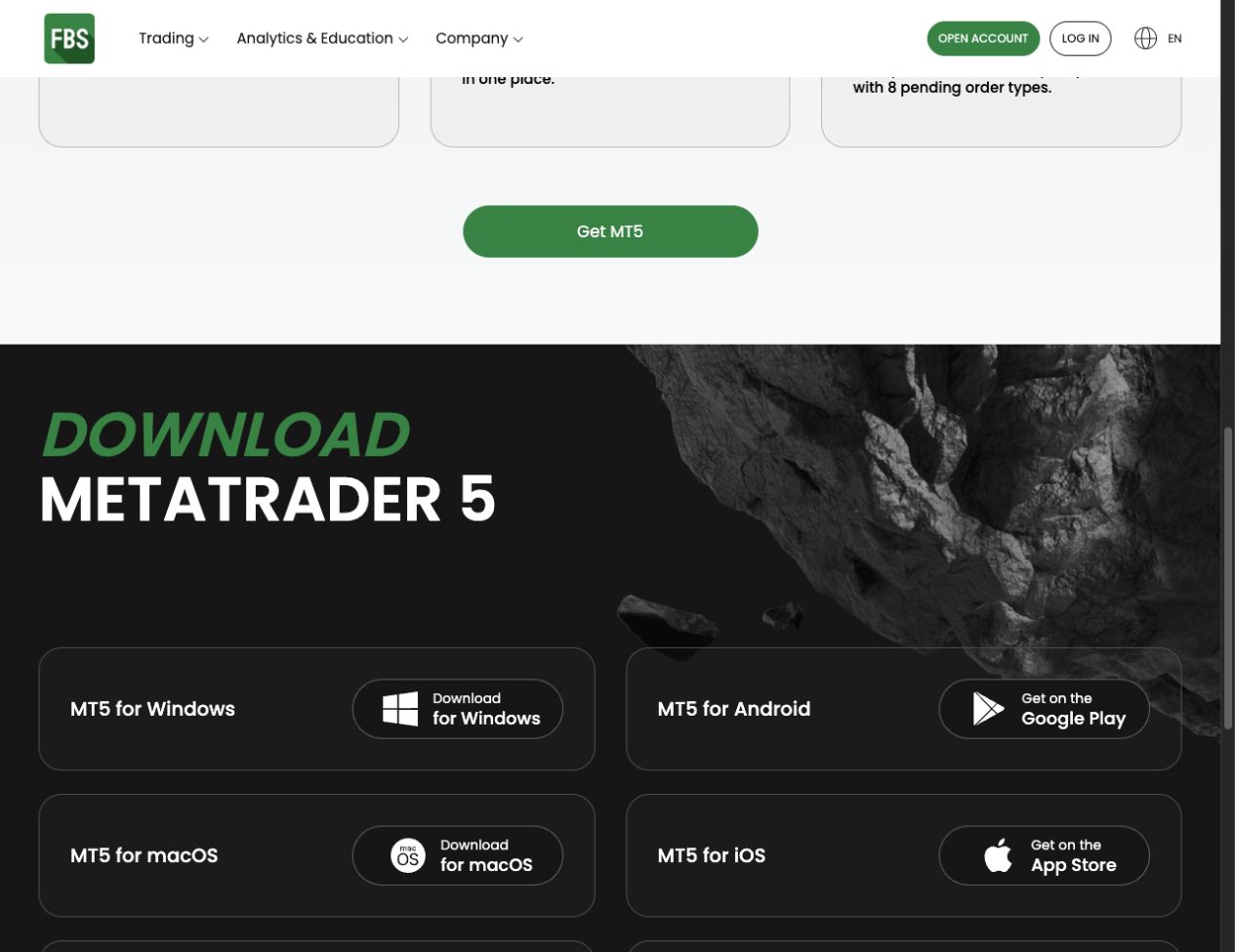
The official FBS MT5 download selector links Windows, macOS, Android, iOS and browser routes. Choose the route for the device you will actually use and check its current compatibility requirements.
| Your task | Route to check |
|---|---|
| Use an MQL5 custom indicator or Expert Advisor | Desktop MT5 with a compatible program and the required files. |
| View an account or manage orders from a phone | The official MetaTrader 5 mobile app and the assigned FBS server. |
| Access a browser platform | The MT5 WebTrader link; check its available controls separately from desktop features. |
For a Mac, choose the macOS option on the FBS MT5 page and follow that installer’s requirements. Use its MT5 instructions when locating files or resolving compatibility issues; an MT4 Mac guide is not an MT5 installation procedure.
Log in on the device you selected
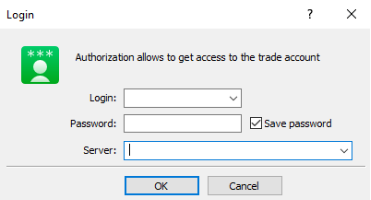
The FBS login help documents desktop and mobile routes. Have the MT5 account number, trading password and exact server from Trader Area ready. Do not use the website email as the trading-account number.
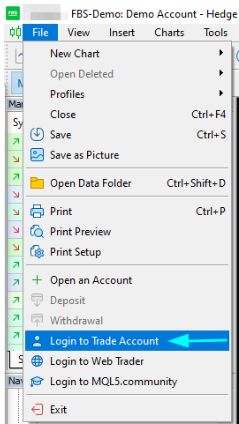
On desktop: open File, then Login to Trade Account. Enter the trading credentials and select the exact assigned server.
On Android: use the account-management screen to add an existing account. Search for FBS Markets Inc and choose the server matching the account, including its real or demo status.
On iPhone or iPad: open Settings and the new-account route, then choose an existing account. Find the provider and matching server before entering the trading credentials.
After connecting: verify the account number and server displayed in the app. An investor password allows observation only. For a mismatch or rejected password, follow the login recovery guide.
The Android and iOS menus may change with app updates; use the current provider screenshots for the labels on your version. We reviewed public documentation and did not test a live FBS account. Practise the initial chart and account checks with a demo account.
Check the position model and MQL5 compatibility
MT5 supports netting and hedging account systems. In netting, deals in the same instrument contribute to one net position; hedging allows separate positions in that instrument. The broker’s account configuration determines which applies. We have not verified a universal FBS account model for every entity or account, so check your account information or ask support before relying on either behaviour.
A tool also needs the correct platform version. Desktop MT5 uses MQL5: .mq5 is source code, while .ex5 is a compiled program. Renaming an MT4 .mq4 or .ex4 file does not make it compatible. Obtain the developer’s MT5 version and its installation instructions.
For a desktop custom-tool check, open the intended terminal’s data folder, use the program category specified by its developer, confirm that it appears in Navigator, and attach it to a demo chart. Review its inputs and loading errors before adding other tools. An indicator displays analysis; an Expert Advisor may automate orders. Desktop custom-program support should not be assumed for the mobile or browser route.
The platform comparison helps separate those software capabilities. The FBS app guide covers provider account services such as verification and payment requests, which are separate from this MT5 setup.
Inspect the actual MT5 instrument
FBS’s MT5 page lists forex, metals, indices, stocks and energies. This broad product list does not mean every instrument is enabled for your account. A stock CFD is not the same product as owning the underlying share.
Before interpreting an order volume, open that instrument’s specification. Check contract size, minimum volume and volume step, then its trading session, financing and margin requirements. Do not copy the lot or pip assumptions from a forex pair into a stock or index CFD.
For a forex calculation, use the pip-value calculator and position-size calculator with the applicable contract inputs. Compare those assumptions with the terminal. The fees guide explains cost categories, while the leverage guide covers why an advertised maximum is not every instrument’s effective ratio.
Diagnose the screen you are actually using
If MT5 connects but an expected instrument is missing, check whether it is available for that account and whether it has been added to the displayed symbol list. If a custom indicator is missing on your phone, compare the app’s capabilities with the desktop requirements; reinstalling the phone app does not convert a desktop program.
If an order or position behaves differently from your expectations, stop and check the account model, symbol specification and any message shown. Avoid experimenting on a funded account to discover those rules. Keep password and server recovery with the login guide, and installation questions with the tool’s developer.
Questions traders ask
Can I use my MT4 account details in FBS MT5?
Use the credentials and server assigned to an MT5 trading account. A broker login and an MT4 trading account do not automatically provide an MT5 trading account.
Which MT5 download should I use on a Mac?
Use the macOS option on the official FBS MT5 page and check its current requirements. Follow the MT5 installer instructions for your system.
Does every FBS MT5 account use hedging?
Do not infer that from the MT5 name. Netting or hedging depends on the account configuration; confirm the model for your actual account.
Can MT4 indicators work on MT5 mobile?
No. Renaming a file does not convert an MT4 program to MT5, and mobile does not provide the desktop custom-program installation workflow. Obtain a compatible desktop MT5 version when that is what the tool requires.
Does the MT5 stocks list mean I own shares?
No. Check the product and contract for the account. A stock CFD provides exposure through a derivative rather than ownership of the underlying share.
Choose your next step
Check login problems. Practise with virtual funds. Compare the other MetaTrader platform. Read the cost checklist.
Sources and review scope
Reviewed on 9 September 2026. This guide uses public provider instructions and our educational explanation. We did not open or fund an FBS account, submit identity documents, place a trade, or test a withdrawal. Screenshots identify their source and show only the steps or documentation described in their captions.
Official broker websites
Read the current terms and restrictions for your actual residence. These links do not establish that a broker or service is available or authorised where you live.
Forex and CFD trading carries a significant risk of loss and is not suitable for everyone. These are affiliate links; we may earn a commission if you use them.