

MT4 setup has two jobs: connect the right account and make sure the terminal expresses trades in units you understand. A chart that moves proves a price feed is present, not that a saved lot setting, account currency or Expert Advisor is appropriate.
Download the correct version
Start from the official RoboForex MT4 page. It provides device and browser routes. Follow the provider’s current download links instead of looking for a repackaged installer on a file-sharing site. Check that the resulting application is MetaTrader 4, not MT5 or the separate RoboForex MobileTrader app.
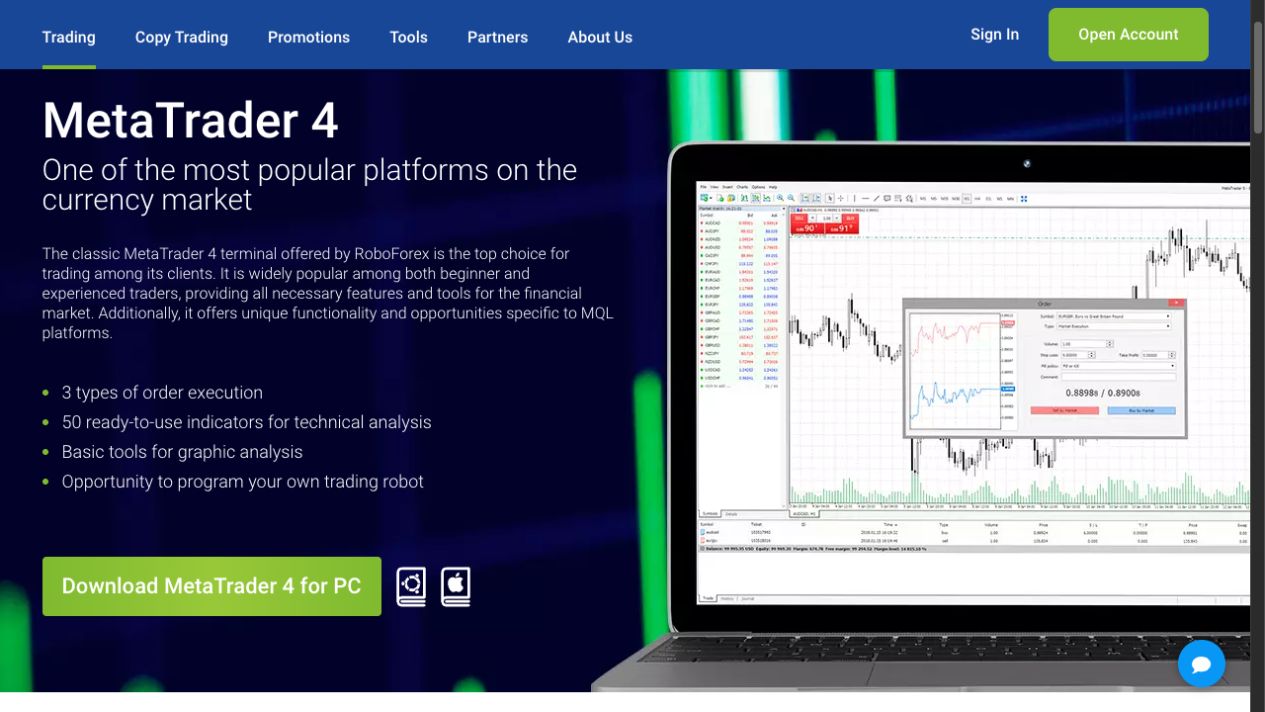
If you already have another broker’s terminal, do not overwrite a working setup without saving its profiles and settings. Keep account names and shortcuts clear enough that you can identify which terminal is connected before trading. A familiar desktop icon is not a substitute for reading the account status inside the application.
Connect the account, not the management profile
- Locate the MT4 account in Members Area. Confirm platform, account number, real/demo designation and server.
- Open the desktop login command. Use Login from the File menu, or right-click the account in Navigator and choose Login. Enter the trading account number and appropriate password, then select the exact server recorded for that account.
- Wait for connection and inspect the account. Check the displayed account identity and balance currency before opening an order ticket.
- Confirm trade permission. Investor access can display an account without allowing trades. Do not confuse read-only access with a price-feed failure.
- Resolve errors from their text. Save the relevant message and time. Use the login troubleshooting guide rather than randomly changing account settings.
This follows the general account/server structure in MetaQuotes’ authorization help. An email address for Members Area is not the numeric MT4 trading login, and an MT5 account does not become compatible because you select a similar broker server.
Inspect the symbol before setting volume
Find the intended instrument in Market Watch and open its specifications. Check contract size, minimum volume, volume step, trading session and the account-specific charges. Similar symbol names can represent different contracts or account conditions. Use the cost guide and account comparison to understand the relevant pricing basis.
Pay particular attention to ProCent units. A small cash deposit may be displayed as a much larger number of cents, and an EA can interpret its input volume differently from what a new user expects. Read the contract and verify the smallest suitable demo position rather than using an inherited lot value.
A useful setup note contains the symbol name exactly as displayed, contract size, volume step and the reason for the intended size. That is more useful than a screenshot of a profitable chart because it lets you repeat the check when the account or instrument changes.
Rehearse manual orders before automation
Create the demo through Members Area. The provider’s 2025 demo-support update discontinued support for terminal-created demo accounts. Our demo guide explains a practice sequence that includes order entry, modification, closure and record review.
Start with a manual order in demo and identify what happens to the spread, margin and account history. Practise cancelling a pending order as well as closing an open position. A stop order and a market order do different jobs, and a displayed stop-loss level is not a guarantee of execution at that exact price during a gap.
Add indicators and EAs deliberately
MT4 desktop supports MQL4 programs, but a downloaded indicator is not automatically an EA and an EA is not automatically suitable for your account. Verify the file’s source, intended platform, symbol assumptions and position-sizing inputs before attaching it. A browser or phone interface should not be treated as the same custom-program runtime.
Keep automated order placement disabled while reviewing an unfamiliar program. Test its behaviour in demo, including what happens after reconnecting or restarting the terminal. Do not infer a strategy’s profitability from installation success or a historical chart.
If an EA needs to run while your computer is off, compare the ordinary VPS and sponsored MT5 hosting options. Those are different products, and the MT5-sponsored offer does not make an MT4 program compatible with MT5.
Keep a small setup record
Save the terminal version, account/server, relevant symbol specifications and the steps needed to reproduce a problem. If a feature is missing, compare the MT5 guide before assuming the two platforms have identical tools. For a broker-specific account permission issue, use official support with the exact error rather than posting credentials in a forum.
Frequently asked questions
Where should I download RoboForex MT4?
Use the current MT4 page on RoboForex’s official website and follow its device-specific links. Avoid third-party repackaged installers. Match the installer to your device, then use the exact account server recorded in Members Area when connecting.
Can I use my Members Area email to sign into MT4?
MT4 requires the trading-account login, its password and the correct server. Members Area is a separate management profile. Confirm the account was created for MT4 and distinguish a trading password from read-only investor access before troubleshooting.
Why can I see prices but cannot trade?
Check whether the account is using investor access, then inspect the exact order error, session and account permissions. A moving chart does not prove trading permission. Record the exact error and time instead of relying only on the appearance of the chart.
Should I create the demo from inside the terminal?
Use RoboForex Members Area. Its June 2025 notice limits supported demo accounts to those opened through Members Area. Select the intended platform there, save its account details and confirm demo status inside the connected terminal before practising orders.
Can my phone run the same custom EA as desktop MT4?
Do not assume that. Custom MQL4 automation needs a compatible terminal runtime; a mobile interface for monitoring and manual orders is a different environment. Keep a single intended automated runtime and test the program's behaviour before allowing it to place orders.
Sources and scope
Checked 15 September 2026. RoboForex Ltd public instructions and the platform documentation below inform this guide. Public pages and blank forms were reviewed; we did not open or fund an account, upload identity documents, place an order or test a withdrawal. Source conditions and the account-specific screen take priority where availability differs.
- MT4 provider downloads
- MetaQuotes MT4 authorization
- Demo account support update27June2025
- Trading accounts and restrictions
For the wider broker context, return to our Forex broker guide library.