


If you are still deciding whether XM fits your needs, read our XM broker review before moving from demo practice to a funded account.
A useful demo account starts with settings you can explain. The biggest virtual balance and highest available leverage may make the terminal feel forgiving, but they can hide the position-sizing mistakes you need practice to reveal.
I’d begin with one account, one familiar forex pair and one clear exercise: connect, prepare an order, check its risk, close it and explain the history. You can add complexity when those steps stop being confusing.
XM advertises virtual-money practice on its official account page. The registration route and settings you see can depend on the XM service available where you live. This guide covers ordinary demo practice. Use the XM country guide for your residence to check the relevant service and local context. XM demo competitions have separate eligibility and contest rules.
Before you create an XM demo account
Have access to your own email, a device you control and a secure place to keep account details. Use your actual country of residence when the official form asks for it. If XM does not offer the service for your residence, stop at that point; choosing another country is not a setup fix.
Choose the platform you want to learn before registering the trading account. MT4 and MT5 are separate platforms, and the account must match the client. If your purpose is to try an MT4 indicator, an MT5 demo will not make its MT4 file compatible. See the XM MT4 setup guide or XM MT5 setup guide for the desktop procedure.
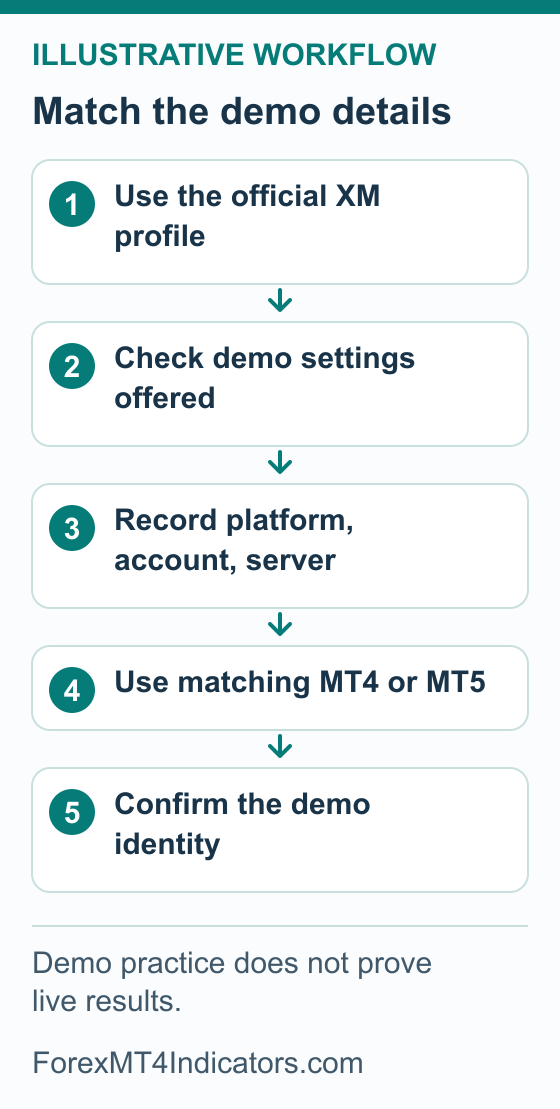
Keep these four items together in your private account record: platform, trading account number, exact server and the fact that it is a demo. Keep passwords in a password manager, away from screenshots and trading notes. A server name copied from another trader’s tutorial is not a substitute for the one assigned to your account.
Create the demo and find its connection details
Starting point: you want a virtual-money practice account and have checked that the official XM service is available to you. Finished result: one identified demo account, with the details needed to connect its matching platform.
- Open the official demo entry. Go to XM’s account page and use the call to action in its demo section. When checked on 6 September 2026, that section’s Get Started link led to XM’s profile registration page. Existing users should use the official sign-in route instead of making duplicate profiles to locate a demo.
- Complete the profile prerequisites shown to you. Follow the official form and any email-confirmation request. Check the service provider and applicable terms on your version of the site. Stop if you have entered a real-account funding flow while trying to practise; depositing money is not part of this exercise.
- Find the demo account offered within that profile. Inspect the account list for a demo already available to you. If none is present, use the current demo-creation option that XM offers. Read the account type carefully before continuing. A page with a trading balance is not, by itself, proof that the account uses virtual money.
- Choose the available practice settings. Where the form offers a choice, select your intended platform, account currency, account type, virtual balance and leverage. Write down the choices actually offered and accepted. Do not assume that a setting described on another regional XM page is available in your profile.
- Save the confirmed connection details. After creation, open that demo’s account information or use the official account confirmation. Record its trading account number, MT4 or MT5 designation and complete server name. Identify the trading password or the official method for setting it. If any of these is missing, ask XM support through the official site before guessing.
- Connect the matching client. Follow the relevant MT4 or MT5 guide and compare the connected account number with your record. Confirm its demo identity in the account information, then check the connection and quotes during the symbol’s trading session. Leave the order ticket alone until the account identity is clear.
If you cannot find the demo entry, return to the official account list and its current help instructions. Repeatedly opening an old bookmarked form may take you further from the current process. An absent control is a reason to confirm the available route with XM, not evidence that you should create a live account.
Which login belongs where?
| Access | What it is for | What to check |
|---|---|---|
| XM website or app profile | Access to the customer profile and account management | Use the profile sign-in method shown by XM. Do not put an email address into MetaTrader’s trading-account-number field. |
| MT4 or MT5 trading login | Connect a particular trading account to its server | Account number, matching platform, exact server and that account’s trading password |
| Investor access | View a trading account without permission to place trades | A successful connection with read-only access is not a failed installation. |
MetaQuotes documents the distinction between trading access and investor access for both MT4 and MT5. The credential roles matter even if you initially chose the same password text in more than one place. Resetting a website password should not be treated as proof that a trading password has changed.
For an invalid-account message, check the platform first, then the exact server, account number and trading password. If the account connects but an order is unavailable, check investor access and the symbol’s session before changing passwords again. If quotes pause over a closed session, compare the session schedule with server time; a motionless chart alone does not diagnose an authentication problem.
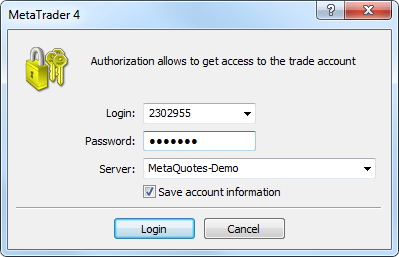
- Login is the trading account identifier. Use the credentials assigned to your own account.
- Choose your exact XM server. MetaQuotes-Demo in this documentation example is not an XM server.
Choose settings that make practice useful
A demo balance should support the lesson you are trying to learn. If you want to practise managing a small hypothetical account, a much larger balance makes an oversized order look less serious as a percentage of equity. Choose a realistic virtual balance where the controls allow it, and keep that starting point in your notes.
Account currency matters because it is the currency in which you read the result and plan your risk. Contract size and symbol details matter too. Do not assume every lot means the same exposure across forex, metals and index CFDs. Check the actual symbol specification and use the pip value calculator with matching inputs.
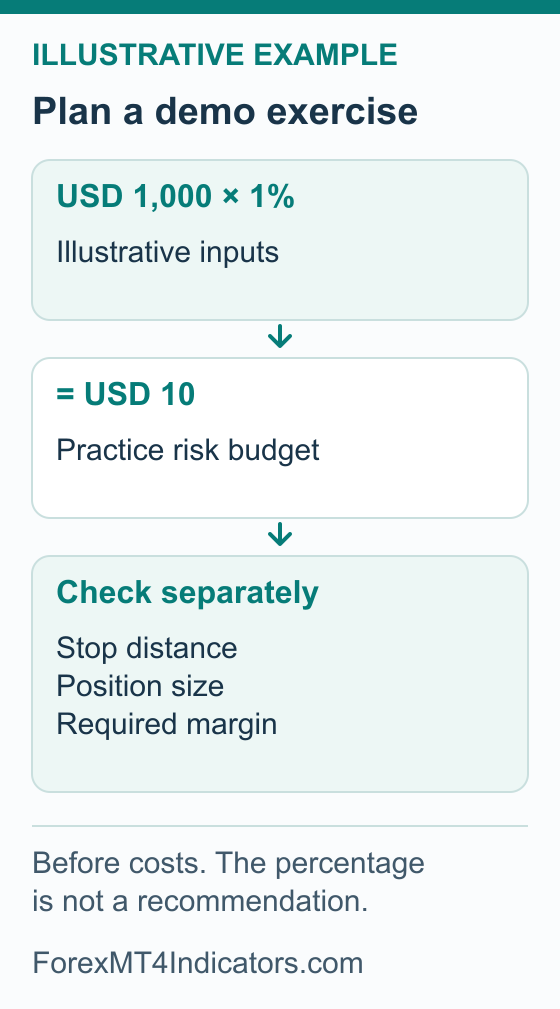
Leverage affects the margin needed for an exposure. It does not make a fixed price move harmless. Plan the position size from your proposed stop distance and risk budget, then check margin separately with the margin calculator. If the terminal accepts a larger order, that only answers whether the request met its requirements; it does not answer whether the size fits your plan.
For a simple arithmetic exercise, a virtual account of USD 1,000 with a chosen practice risk limit of 1% gives a USD 10 budget: 1,000 × 0.01 = 10. This percentage is an illustrative input, not a recommendation. Use the lot size calculator to work from the actual symbol and planned stop distance, allowing for costs and the broker’s volume increment. Margin and planned loss are different numbers.
Reset, recover or replace a demo carefully
Starting point: the demo is missing, cannot connect or needs a different virtual balance. Finished result: you know whether the problem was access, account status or practice funds, and you have preserved the record of the previous exercise.
- Identify what has stopped working. Note the exact error and check whether the account still appears in your official profile. A depleted virtual balance, an archived account and an incorrect password need different fixes. Avoid treating all three as “expired”.
- Preserve the learning record. Save the available trading history and your notes before changing a balance or creating a replacement. Record the starting balance and the reason for restarting, so a new account does not silently erase a failed experiment.
- Check the rule that applies to this demo. Use the current account-management help available from XM’s official site, or ask support about inactivity, reactivation, balance adjustment and additional demos for your account. Do not rely on a universal expiry period or unlimited resets unless XM confirms those terms for your profile.
- Use the recovery action actually offered. If a balance-adjustment control is available, read whether it sets a new total or adds funds before confirming. If the account is archived, follow the stated reactivation route if offered. If recovery is unavailable, create a fresh demo only through the current permitted flow.
- Recheck the account after the change. Record the resulting balance and date. For a replacement demo, collect its account number, platform, server and credentials anew. Reconnect, confirm its demo identity and start a separate practice record rather than merging the new balance into old performance figures.
A reset can make a fresh exercise easier to compare. Resetting every time a trade goes wrong makes it harder to recognise a repeated mistake. I’d write down what changed in the plan before beginning again.
What demo practice can and cannot establish
Use the demo to learn order entry, symbol selection, lot sizing, protective exits and the difference between an open position and a pending order. Judge a session partly by whether you followed the intended procedure. A profitable accidental click is still an execution mistake.
Virtual results do not establish how a live account will fill orders, what slippage you will receive or how you will react when losses involve your own money. They do not test deposits, withdrawals or dispute handling. This article explains the official documented routes; we did not create an XM account or place trades for this guide.
Before another session, write the instrument, entry condition, proposed stop, risk budget and reason to stop practising for the day. The forex trading plan guide helps turn those notes into a repeatable exercise. Keep the same rules long enough to review mistakes instead of changing them after every outcome.
XM demo account questions
Can I withdraw the money in an XM demo?
Ordinary demo funds and results are virtual. They are not a cash balance to withdraw. Do not confuse ordinary practice with a separately promoted competition, whose eligibility, prizes and restrictions must be read in its own terms.
Does an XM demo always expire after a fixed number of days?
Use the current inactivity and account-status rules for your demo. This guide does not assign one expiry period across XM profiles and regions. If an old demo fails to connect, check its status before assuming expiry.
Can an MT4 demo login work in MT5?
Use an account created for the matching platform. Installing MT5 does not convert an MT4 trading account. Obtain the correct MT5 demo details if MT5 is the platform you want to practise.
What should I do after the demo connects?
Complete a small, deliberate platform exercise: identify the symbol, calculate a hypothetical risk budget, inspect a demo order, modify its protective fields and review its closure. Follow the relevant setup guide before considering any separate live-account registration process.
Sources and review scope
Public sources checked on 6–7 September 2026. Dates and provider scopes are recorded below. Account terms and interface details can vary by provider, location and device. Official documentation examples are identified in their captions.
- XM: Choose Your Trading Account: Official virtual-money demo entry. The response checked on 7 September named Trading Point of Financial Instruments Limited and EEA residents; it does not establish worldwide demo terms. Checked 2026-09-07.
- XM profile registration: Public redirect from demo Get Started verified; authenticated registration and account management not inspected. Checked 2026-09-06.
- MetaTrader 4 Help: Authorization: Account number, password and server; trading versus investor authorization. Checked 2026-09-06.
- MetaTrader 5 Help: Connect to an Account: MT5 account number, master/investor password and server roles. Checked 2026-09-06.
- MetaTrader 5 Help: Open an Account: Demo virtual-money purpose and platform account distinction; generic terminal creation controls not asserted as XM profile controls. Checked 2026-09-06.