

Use our XM broker review for the account-provider decision and the XM country guides for local context. This guide handles the MT5 connection and demo controls.
If XM does not appear where you expect in MetaTrader 5, start with the account details. A broker search result, a trading server and a customer website are related, but they are not interchangeable. The right connection is the one assigned to your MT5 trading account.
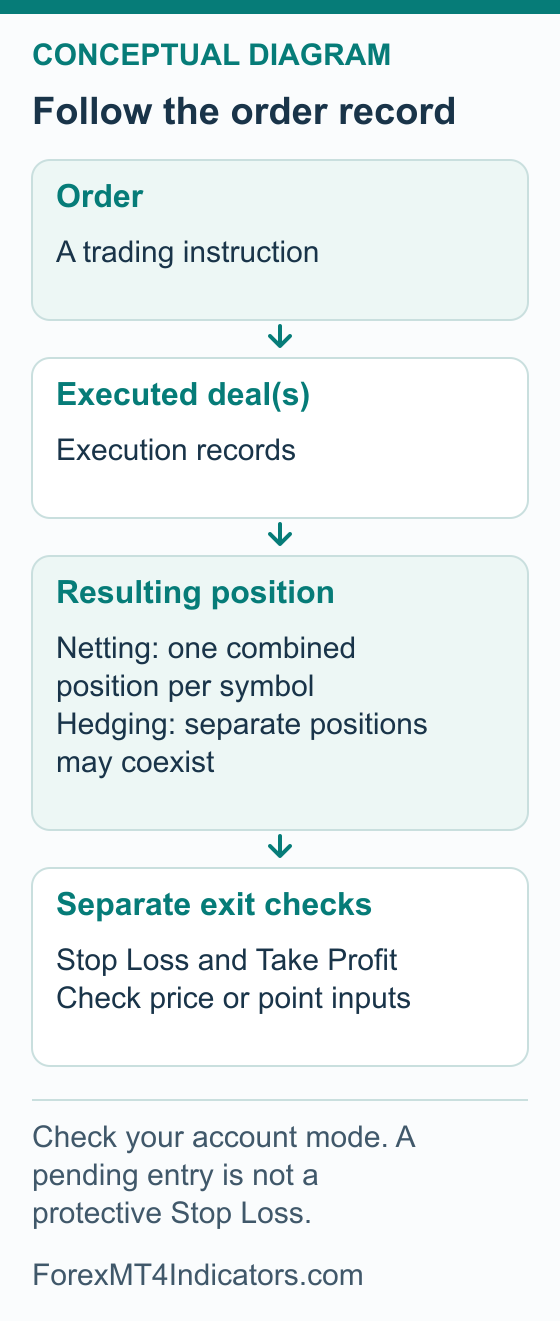
There is a second point worth getting right early: MT5 records orders, deals and positions separately. Understanding that distinction makes its Trade and History tabs much easier to read, particularly when one request affects an existing position.
This desktop guide uses MetaQuotes documentation checked on 6 September 2026 and XM’s platform entry rechecked on 7 September. The order exercise is for a demo account only. We did not install the platform, sign in to an XM account or place any trade for this article.
Prepare the account and device first
You need a supported device, an internet connection and an XM demo account created for MT5. Keep its trading account number, complete server name, company details supplied by XM and trading password available privately. Check those details in your official account information rather than copying a public server example.
An MT4 trading account does not become an MT5 account because you install the newer platform. If your account confirmation specifies MT4, follow the XM MT4 setup guide. Our broader MetaTrader 5 platform introduction explains the platform’s role if you are still choosing a workspace.
1. Use the official XM MT5 download or web route
Open the XM MT5 page, rechecked on 12 September 2026, and follow its desktop, mobile or web option for your device and account. A web or mobile route does not provide the desktop MQL5 folder used by the custom-file instructions below.
Expected result: the intended MT5 client opens, or the official web terminal is ready for login. Neither outcome alone confirms your account.
- Open XM’s official MT5 page. Select the route appropriate to your device and the XM service available to you. The public page checked for this guide displayed PC, Mac, mobile/tablet and WebTrader routes. Availability and presentation can change with the regional site.
- Check what the link opens. Confirm the intended application name and displayed publisher for a download or app-store listing. For WebTrader, follow the link directly from XM’s platform page. Avoid a copied terminal URL containing somebody else’s preset server.
- Install the desktop client using the supplied wizard. For Windows, read the software agreement, use Settings if you need to choose an installation folder, then complete the installation. MetaQuotes documents the web installer, which retrieves components during setup, in Platform Installation. Preserve an existing terminal’s data if you already have a working installation.
- Identify the application before connecting. Check that the opened client is MT5 and note its version/build information for support. If it is a Mac package, follow the current Mac-specific installation instructions linked by the provider. If the result is a browser terminal, use its web controls rather than looking for the desktop filesystem.
The XM App and MetaTrader 5 are different applications. A profile sign-in within the XM App is not proof that a separate desktop MT5 terminal is connected. Likewise, the desktop MQL5 indicator-folder steps below do not describe installing custom files on a phone or in a browser.
If the installer fails, keep the precise error and check the current operating-system requirements and official download destination. I’d establish that the intended program opens before changing account passwords or replacing an existing installation.

2. Find the correct XM company and server
Expected result: your exact MT5 demo account is connected to its assigned server. A successful search is only an intermediate step.
- Confirm the platform and account details. Read the MT5 designation, account number and exact server from XM’s account information or confirmation. Use the company identity XM supplies for this account. Do not infer the correct legal company from the first XM name in a search list.
- Search for the broker if it is missing. In desktop MT5, use File > Open an Account. Type the company name and use Find your broker. Compare the returned company with your official details, then continue with the matching result. MetaQuotes documents this search and the option to connect an existing account in Open an Account.
- Choose the existing-account connection. You already have a demo for this exercise, so use its details rather than requesting an unrelated new account from the search screen. Select the exact assigned server. If the company or server cannot be matched, stop and ask XM for the current MT5 connection details.
- Enter the trading credentials. The direct desktop route is File > Login to Trade Account. Supply Login, Password and Server, then confirm the connection. Login means the trading account number. Use its trading password, not a website email login. MetaQuotes’ connection guide explains the fields and master versus investor access.
- Verify the connected demo. Compare the account number with your saved confirmation and verify its demo designation in the account information. Check the connection indicator and quotes for an instrument whose session is open. Do not proceed to an order merely because a chart is visible.
Use the supplied company and complete server name, including any numbered suffix. Similar branding in search results does not confirm the right service.
Investor access is intended for viewing and analysis without trading permission. A terminal that connects read-only may therefore be behaving correctly. Recover the selected trading account’s password through XM’s official help if necessary; a website-password reset and an MT5 trading-password reset are different operations.
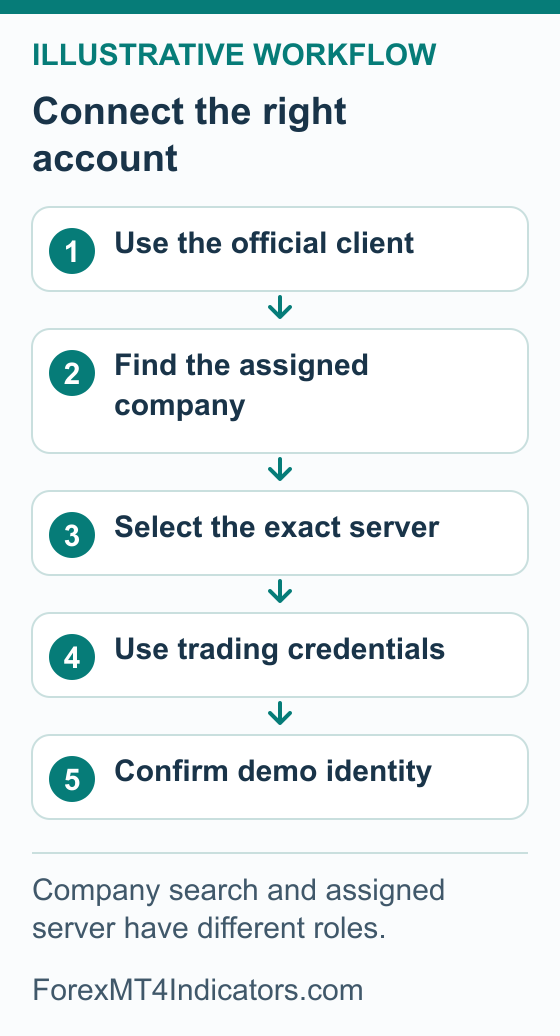
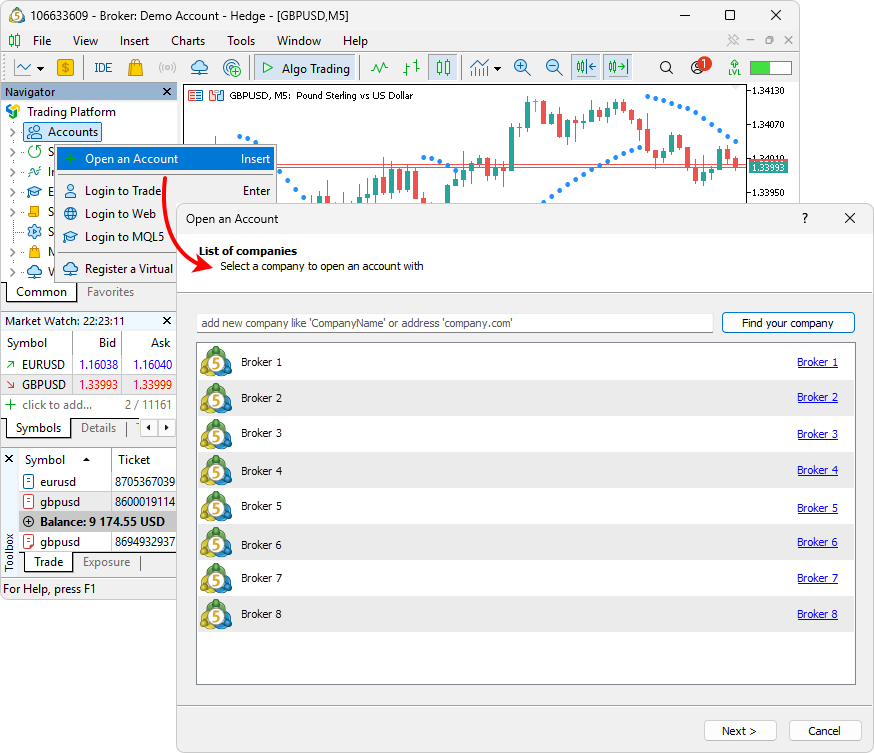
- Search for the company identified by your XM account instructions. These generic Broker rows are documentation examples.
- Review the selected company before continuing to the account and server steps.
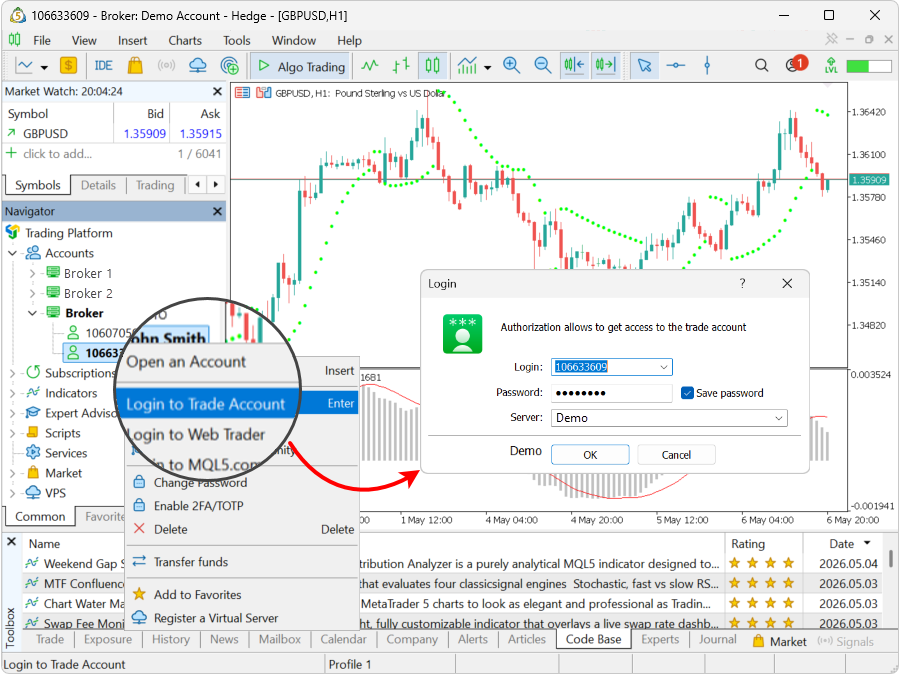
- Use the trading login, not the email used for the XM profile.
- Match the server to the account. The generic Demo entry shown here is not an XM server recommendation.
3. Check the symbol and set up a chart
Expected result: you can identify the actual instrument, read its trading conditions and explain the indicator visible on the chart.
- Locate the account’s symbol in Market Watch. Use its symbol-selection controls to show the intended instrument. Read its full name and description, including any suffix. An instrument mentioned on a marketing page is not proof that the same symbol is available on your account.
- Open Specification from the symbol’s context menu. Read contract size, tick size/value, volume minimum and step, trading sessions, execution mode and allowed order/filling options. Also check the stops and freeze restrictions. MetaQuotes lists these broker-defined details in Market Watch help.
- Open a chart for that symbol. Choose its Chart Window command and select a timeframe. Match the chart name to the symbol you inspected. Compare session times with the broker’s server time; the broker time converter is useful once you know the correct current offset.
- Attach a built-in indicator. Drag it from Navigator to the chart, or use Insert > Indicators. Review its settings and confirm the expected plot or subwindow. The official indicator guide also explains how to reopen its properties and control the timeframes on which it appears.
- Add a custom MT5 indicator only if the exercise needs it. In the intended desktop terminal, use File > Open Data Folder, then MQL5/Indicators. Place the trusted MT5 package in the appropriate folder, preserving any documented dependencies. The official folder reference identifies this location. EX5 is the executable format; MQ5 is source that must compile successfully.
- Reload the indicator list and inspect the result. If a newly copied compiled indicator is absent, refresh the Navigator list where offered or restart that terminal after saving your workspace. Attach the indicator and compare its inputs, timeframe visibility and plot with its documentation. Keep the first check separate from any claim about signal quality.
If the custom tool fails, read the relevant messages under Toolbox’s Experts or Journal tabs. MetaQuotes’ platform log guide distinguishes program output from platform events. Check the file’s platform, licence and dependencies before changing unrelated settings. Do not rename an EX4 file to EX5 or enable DLL access because a chart is blank.
4. Practise the MT5 demo order lifecycle
Before opening a ticket, confirm the demo identity again and establish the account’s actual position accounting mode from its account information or XM support. Do not place opposite orders to discover the mode by trial and error.
| MT5 concept | What to understand before clicking |
|---|---|
| Order | Your instruction to the broker. It may be accepted, rejected, canceled or executed. |
| Deal | An executed transaction. One order can produce more than one deal. |
| Position | The exposure that remains open after transactions are accounted for. |
| Netting | One combined position per symbol. An opposite deal can reduce, close or reverse it. |
| Hedging | Separate positions can coexist for the same symbol, including opposite directions. |
The broker sets the account’s mode. These are MT5 platform capabilities, not a claim that every XM account offers a choice. Recheck protective levels after an action that changes an existing position, because its stop handling depends on the accounting mode.
Separate position size, entry and protective exits
For an arithmetic-only example, suppose a virtual USD 1,000 account uses a chosen 0.5% practice-risk budget. That is USD 5: 1,000 × 0.005 = 5. On a hypothetical EUR/USD contract of 100,000 EUR per lot, with a 0.0001 pip and a USD account, one lot has a USD 10 pip value. A 25-pip adverse move at 0.02 lots is USD 5 before costs: 25 × 10 × 0.02 = 5.
Those figures are illustrative, not XM contract settings or a trade recommendation. Confirm your symbol and use the pip value calculator and lot size calculator with matching inputs. Round only to permitted volume increments while staying within the planned budget, then check available margin. Allow for trading costs and possible slippage.
For a simple forex buy plan, the initial loss-limiting Stop Loss belongs below the intended entry and Take Profit above it; a sell plan reverses that arrangement. Also satisfy the current quote and symbol-distance rules. Forex buys open on Ask and sells on Bid; protective exits for a buy are checked against Bid, and for a sell against Ask. Do not apply that forex description blindly to exchange-traded instruments with different triggering rules.
For ordinary forex pending entries, Buy Limit belongs below the current Ask and Buy Stop above it; Sell Limit belongs above the current Bid and Sell Stop below it. Check the permitted distance before entering the price. MT5 also supports stop-limit instructions at platform level, where triggering the stop places a limit order.
That added condition can leave the entry unfilled. Use only the order types enabled for your particular symbol.
Run one deliberate demo exercise
Expected result: you can trace your demo request to its accepted state, any executed deals and the final position or history record. Keep one-click trading disabled while learning.
- Prepare the demo ticket. Select the symbol and open New Order from its Market Watch context menu. Inspect Type and enter the calculated Volume. Check whether Stop Loss and Take Profit inputs are displayed as prices or distances in points before entering them; MT5 can use either presentation. Do not read a points field as pips.
- Choose the entry instruction. For a market order, use the symbol’s displayed execution mode. For a pending order, select Pending Order and an allowed subtype, then enter its entry price and any expiry. Inspect the available filling policy rather than assuming every MT5 option is supported.
- Confirm the demo request. Recheck account, direction, volume, entry and both protective fields. Submit only if they match the written exercise, using the relevant Buy, Sell or Place control. Read the server’s result; if rejected, diagnose it before resubmitting.
- Inspect the accepted state. Open Toolbox > Trade and distinguish the position from any untriggered pending order. Compare its volume, price, S/L and T/P with your plan.
- Practise changing protection. On the selected demo position, use Modify or delete, amend Stop Loss or Take Profit and submit the modification. Verify the accepted values in Trade. Keep a reason for the change in your notes.
- Manage a pending entry separately. On an untriggered pending order, use its Modify or delete dialog to revise the entry or protective fields, or Delete to cancel it. Recheck whether it remains pending before acting.
- Close the chosen demo position. Use Close Position on its Trade row, verify the closing volume and confirm Close. Then inspect History to trace the related order and deals. Check that no unintended position or pending order remains.
These desktop controls and their confirmation behavior are documented in MetaQuotes’ Executing Trades guide. A pending Buy Stop or Sell Stop is an entry instruction, not a protective Stop Loss. Stop Limit orders add another entry-price condition; their extra price field is not Take Profit. Leaving a protective field at zero leaves that protection unset.
Use a simple market or supported pending type you can explain before experimenting with more complex requests. An accepted Stop Loss does not guarantee an exact fill. Record requested and actual prices separately, and treat a demo result as practice information rather than evidence of live execution quality.
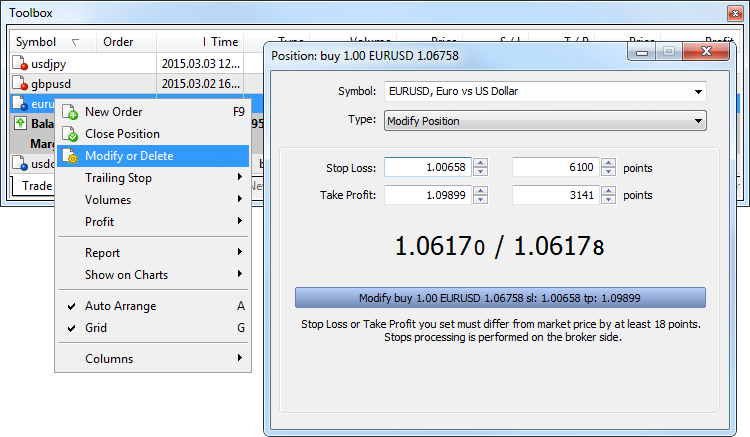
- Check the price and points fields carefully. Copy your planned level, not the example shown.
- Review the change before applying it to a demo position. Confirm the resulting position record afterward.
Troubleshoot the specific failure
| What you see | What to check next |
|---|---|
| XM missing from broker search | The exact company or server details supplied for this MT5 account. Ask official support if no matching result appears. |
| Invalid account | MT5 compatibility, assigned server, trading number and trading password, then the demo’s current status. |
| Connected without trading access | Investor password, account permissions, symbol trade mode and session. |
| Invalid stops or disabled modification | Input units, Bid/Ask side, current prices and symbol stops/freeze restrictions. Recalculate size if the stop distance changes. |
| Invalid volume, filling or insufficient funds | Volume step, allowed filling policy and available margin. Do not force the request by choosing unexplained settings. |
| An opposite order did not close the intended position | The account’s netting/hedging mode and the actual Trade rows. Use the selected position’s close command, not another blind opposite order. |
If the connection still fails, retain the exact message, time, platform build and supplied server details for XM support. Keep passwords and account screenshots private. If only quotes are motionless, check the symbol session before assuming that login failed.
Finish the first demo session when you can explain the account identity, order, protective levels and history record. Keep the virtual balance and toolset simple while learning those controls.
For software that must remain active when your own computer is disconnected, the XM Global VPS guide explains the observed eligibility, monthly cost and connection steps. Keep that service separate from MetaTrader’s built-in virtual hosting and the Japanese XMTrading VPS offer.
Use the MT5 setup as a starting point for account skills
Choose the next guide by the task you need. Keep the account, exact symbol and position-accounting mode in your practice notes.
- Profile access differs from MT5 access: use XM login help to identify the right credentials and error record.
- You want mobile account management: read the XM app guide. A broker app, MT5 mobile and MT5 desktop can support different tasks.
- You are studying gold: the gold guide explains specification and sizing checks before an order example is applied to the wrong contract.
- You need to understand funds and margin: the margin guide connects position exposure, equity and used margin without treating the maximum leverage as a target.
- You are comparing copied and manual trades: start with the copy-trading guide. Do not assume that a normal MT5 account and an investor allocation use the same rules.
For a second account or a different base currency, use account management before moving funds. Keep the order-lifecycle and netting/hedging checks above as the MT5-specific instructions rather than duplicating them inside every account guide.
Common MT5 questions
Why are there several XM names in MT5 broker search?
The search helps locate a company and its services. Use the company and complete server details supplied for your specific XM MT5 account; the first similar name is not proof of a match. Ask XM for the correct connection details if none matches.
Are MT5 Stop Loss fields entered in pips?
Check the units displayed in the ticket. MT5 can show protective inputs as price levels or distances in points, depending on the presentation settings. Do not treat points as pips. Confirm the accepted S/L and T/P after submission.
Will an opposite order close my MT5 position?
That depends on the account’s position accounting mode. In netting, an opposite deal can reduce, close or reverse the combined position. Hedging can retain separate opposite positions. Use the selected position’s close command for a deliberate closing exercise.
Why does MT5 show an order and several deals?
An order is an instruction; a deal is an executed transaction. One order can execute through multiple deals. The position describes the exposure remaining after those transactions, so the three records serve different purposes.
Sources and review scope
Public sources were checked on the dates below. Provider descriptions and public screens are distinguished from account tests; no funded account, execution or payment was tested.
- XM MT5 platform page · 2026-09-07 · Official PC, Mac, mobile/tablet and WebTrader entry presentation; regional availability not universal. The response rechecked on 7 September named XM Global Limited, Belize; this footer does not establish eligibility for every reader. Checked 2026-09-07.
- MT5 Help: Platform Installation · 2026-09-06 · Windows web installer, wizard Settings, installation folder and completion. Checked 2026-09-06.
- MT5 Help: Open an Account · 2026-09-06 · Company search using Find your broker and existing-account option; demo account type. Checked 2026-09-06.
- MT5 Help: Connect to an Account · 2026-09-06 · Login to Trade Account, number, password, exact server and master/investor roles. Checked 2026-09-06.
- MT5 Help: User Interface · 2026-09-06 · Navigator, account identity header, connection status, Toolbox and charts. Checked 2026-09-06.
- MT5 Help: Market Watch · 2026-09-06 · Chart Window and symbol specification including tick/contract/volume/stops/sessions/execution/filling. Checked 2026-09-06.
- MT5 Help: Technical Indicators · 2026-09-06 · Navigator/Insert attachment, properties and timeframe visibility. Checked 2026-09-06.
- MT5 Help: Files and Folders · 2026-09-06 · File Open data folder and MQL5/Indicators storage. Checked 2026-09-06.
- MT5 Help: Platform Logs · 2026-09-06 · Experts/Journal distinction and useful platform diagnostics. Checked 2026-09-06.
- MT5 Help: Basic Principles · 2026-09-06 · Orders/deals/positions; broker-selected netting/hedging; forex Bid/Ask and SL/TP roles, exchange caveat. Checked 2026-09-06.
- MT5 Help: Executing Trades · 2026-09-06 · Desktop new order; SL/TP price/points input; pending types; modify/cancel/close/history; one-click and acceptance distinctions. Checked 2026-09-06.
- MT5 Help: Expert Advisors and Custom Indicators · 2026-09-06 · Indicators vs robots and documented DLL dependency caution. Checked 2026-09-06.
- XM MT5 public platform entry. Rechecked 12 September 2026. Device routes and public platform capabilities; no installation or trading test.